Maestro Cloud Testing
TestingBot provides a grid of real iOS and Android devices, plus iOS simulators and Android emulators, ready to run your Maestro flows. Connect your existing Maestro YAML flows to the TestingBot cloud and run them in parallel from your machine or your CI pipeline.
Maestro is a mobile UI testing framework, which supports testing on both iOS and Android. You write flows, which are story-like tests, where you describe a specific flow in your mobile application. For example, you could have a login flow, or a checkout flow.
Maestro is a relatively new test framework and offers several nice features, such as:
- Built-in tolerance to flakiness: various mechanisms are added to try and prevent flaky tests, for example locators that have changed or moved positions.
- Automatic waits: Maestro will automatically wait for certain conditions, which means you do not have to worry about delays, or adding sleep commands to your tests.
- Declarative syntax, which is defined in Flow (
yaml) files.
Why TestingBot Cloud?
TestingBot has been offering cloud-based testing since 2012 and has built a robust solution for Maestro cloud testing. Compared to other vendors and Maestro cloud, we offer the following improved features:
- Run on any iOS version, both physical iOS devices and iOS simulators.
- Test on physical Android devices, not just emulators (though that's also certainly possible)
- No execution limit: your tests can run as long as they need
- Apply various options such as setting orientation, geolocation options and more
TestingBot CLI
The easiest way to run Maestro tests on TestingBot is using our CLI tool. It handles uploading your app, flows and running tests in a single command.
Installation
npm install -g @testingbot/cliAuthentication
Authenticate using this command:
testingbot loginThis opens your browser for authentication. After logging in, your credentials are saved to ~/.testingbot and you can start using the CLI.
Other Authentication Methods
-
Command-line options:
--api-keyand--api-secret -
Environment variables:
TB_KEYandTB_SECRET -
Config file: Create
~/.testingbotwith contentkey:secret
Quick Start
Run Maestro tests with a single command:
testingbot maestro app.apk flow.yml --device "Pixel 8" --deviceVersion "14"testingbot maestro app.ipa flow.yml --device "iPhone 16" --real-deviceThe CLI will:
- Upload your app to TestingBot, from a local file or a download URL such as an EAS Build link (
--app-url), or reuse an earlier upload with--app-binary-id - Upload and zip your flow files
- Start the test run, on one device or a whole device matrix
- Show real-time progress and results, and exit
0,2(flows failed) or1(error)
For pipelines there is --json output, --async with testingbot status --id <projectId> --wait and testingbot artifacts to come back for results, a GitHub Action, GitHub PR status checks and Expo / EAS support. See CI/CD integration.
Coming from Maestro Cloud? The migration guide maps every maestro cloud flag to its TestingBot equivalent.
Upload Mobile App
You will need to upload a mobile app to run tests with Maestro. The format of this file depends on which device type you'd like to test:
-
iOS physical devices/simulators:
You can upload your
.ipaor.zipfile (for simulators, see here how to prepare this zip file). -
Android physical devices/emulators:
Upload the
.apkfile, which TestingBot will automatically install on the Android device.
When using the CLI, the app upload is handled automatically as part of the testingbot maestro command. Simply specify your app file as the first argument:
testingbot maestro /path/to/app/file/sample-debug.apk ./flowsSupported app formats:
-
Android:
.apk -
iOS Physical Device:
.ipa -
iOS Simulator:
.app,.zip(zipped .app bundle)
curl -u api_key:api_secret \
-X POST "https://api.testingbot.com/v1/app-automate/maestro/app" \
-F "file=@/path/to/app/file/sample-debug.zip"
The API response will include an id response, which you can use in the other API calls.
{
    "id": 4012
}
Upload Maestro Flows
To upload the Flows zip file, please follow the example below.
When using the CLI, flow files are automatically zipped and uploaded. You can specify:
- A directory containing flow files
- Individual
.yamlor.ymlfiles - A pre-zipped
.zipfile - Glob patterns (e.g.,
./flows/**/*.yaml)
# Single directory
testingbot maestro app.apk ./flows

# Multiple directories
testingbot maestro app.apk ./flows/smoke ./flows/regression

# Individual flow files
testingbot maestro app.apk login.yaml checkout.yaml

# Pre-zipped flows
testingbot maestro app.apk flows.zip
Maestro Flow files are .yaml files which contain the actions that need to be performed. You can zip these together and upload to TestingBot by using the following command:
zip -r flows.zip *.yamlMake sure all the necessary flows and sub flows are included in the zip file.
curl -u api_key:api_secret \
-X POST "https://api.testingbot.com/v1/app-automate/maestro/:id/tests" \
-F "file=@/path/to/app/file/flows.zip"
Replace the :id with the identifier you received during the app upload call. (In this example 4012)
Calling this multiple times with the same :id will overwrite the previously uploaded Flows zip file.
Zip structure
Maestro needs to know which flows it should run. If there are flow files (.yaml files) in the top-level directory of the zip file, it will run these flow files.
You can also include a config.yaml file in the top-level directory of the zip file, to indicate which flows should be tested.
For example, you can use the ** annotation to indicate you want to run all flows, even if they are in separate sub-directories.
flows:
  - "**"
More information is available in the Maestro Docs.
Run Maestro tests
Once you've uploaded both your app and Flows zip file, you can run the Maestro tests on the TestingBot cloud.
Specify one or more capabilities, to indicate on which iOS simulators or Android devices you want to run your tests on.
Use the CLI to run tests with device selection options:
# Basic usage with device selection
testingbot maestro app.apk flow.yml --device "Pixel 8" --deviceVersion "14"

# iOS simulator
testingbot maestro app.zip ./flows --platform iOS --device "iPhone 16" --deviceVersion "26.0"

# iOS physical device
testingbot maestro app.ipa flow.yml --device "iPhone 16" --real-device

# Android real device
testingbot maestro app.apk flow.yml --device "Galaxy S24" --real-device

# With additional options
testingbot maestro app.apk ./flows \
  --device "Pixel 8" \
  --deviceVersion "14" \
  --name "Smoke Tests" \
  --build "v2.1.0"

# With CI/CD integration (Git metadata)
testingbot maestro app.apk ./flows \
  --device "Pixel 8" \
  --commit-sha "$COMMIT_SHA" \
  --pull-request-id "$PR_NUMBER" \
  --repo-owner "myorg" \
  --repo-name "myapp"
Device Options
| Option | Description |
|---|---|
--device <name> |
Device name (e.g., "Pixel 9", "iPhone 16") |
--platform <name> |
Platform: Android or iOS |
--deviceVersion <version> |
OS version (e.g., "14", "18.0") |
--real-device |
Use a real device instead of emulator/simulator |
See the Options page for more configuration options.
Select a device configuration below, then use the generated cURL command:
Replace the :id with the identifier you received during the app upload call. (In this example 4012)
When running Maestro tests on physical devices, a device could be occupied at times. You might want to use regex/wildcard patterns to target a broad range of devices.
We offer special parameters which you can use to allocate a device:
| Regex Input | Result |
|---|---|
".*Galaxy.*" |
This will allocate any of the available Galaxy devices (phone or tablet) |
"Pixel.*" |
This will allocate any of the available Pixel devices. |
".*Galaxy.*|.*Pixel.*" |
This will allocate any available Galaxy or Pixel device. Use | to combine patterns; a comma is matched literally and will find no device. |
"*" |
This will allocate a random available device, you can use this with the deviceName or version. |
The version capability accepts the same patterns, and additionally a comparison
against an OS version. This is useful when you do not want to pin a run to a version that may be retired.
| Version Input | Result |
|---|---|
"14" |
Any 14.x version. |
"18.6" |
Exactly this version. |
">=14" |
The newest available version of 14 or higher. >, <, <= and = work too. |
"1[34].*" |
Any 13.x or 14.x version. |
"*" |
Any available version. |
View Maestro Results
The results of your Maestro tests will be available in the TestingBot dashboard.
Each test result contains a video, test logs and other meta data generated during the test run. Maestro flows will be displayed, together with the steps that were taken during each flow.
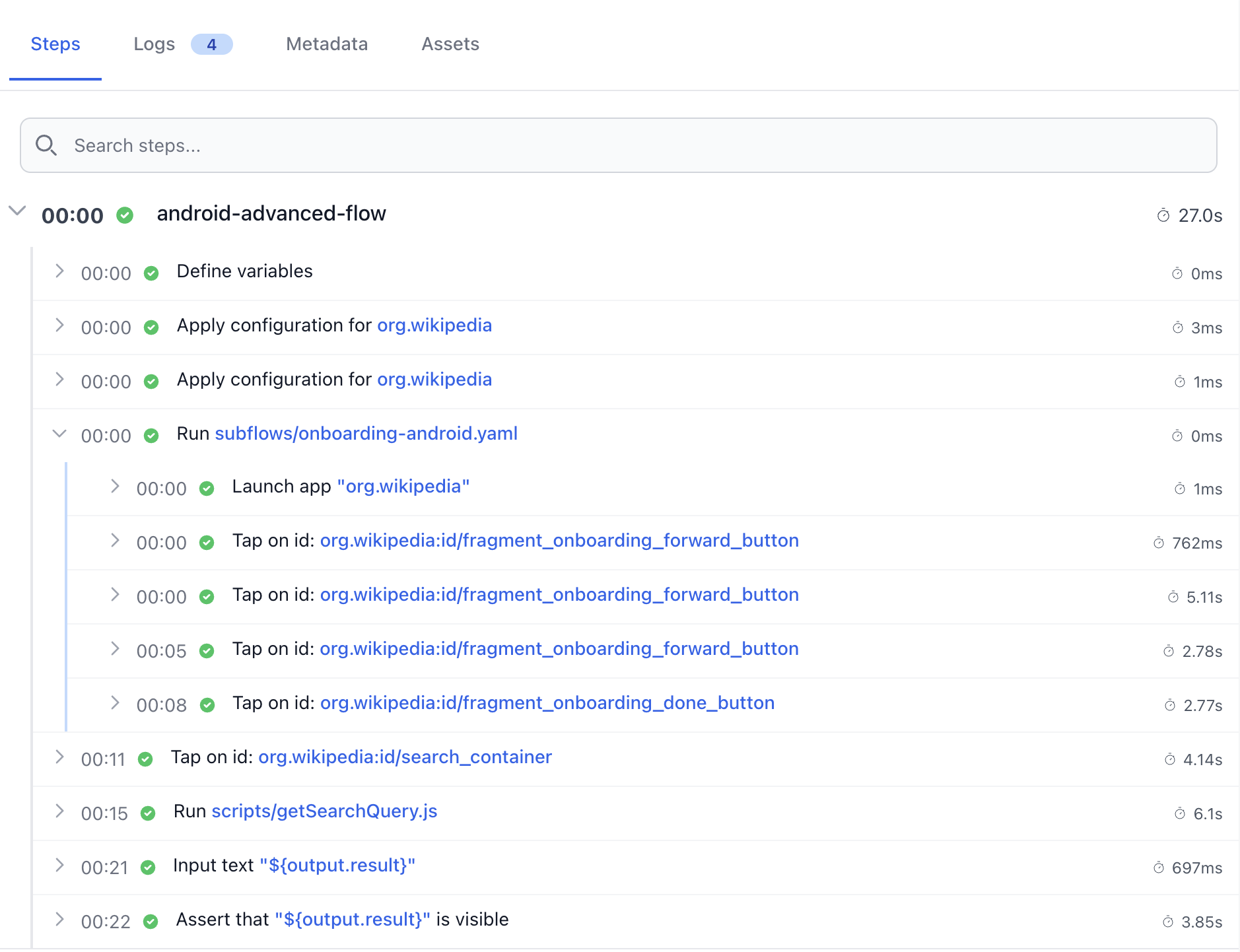
You can also use the CLI or an API call to get back the result from the run(s):
By default, the CLI waits for test completion and displays real-time progress:
testingbot maestro app.apk ./flows --device "Pixel 8"The CLI will show:
- Upload progress for app and flows
- Device allocation status
- Live output from Maestro flows
- Final pass/fail status
Async Mode
Use --async to start tests without waiting for results, then come back for them with status and artifacts:
testingbot maestro app.apk ./flows --device "Pixel 8" --async
#   Tests started in async mode. Project ID: 1234

testingbot status --id 1234 --wait
testingbot artifacts --id 1234 --report junit --report-output-dir ./reports
JSON Output
Use --json to get every run and flow result as one JSON document on stdout, or --json-file to write it next to the normal output:
testingbot maestro app.apk ./flows --device "Pixel 8" --json | jq .outcomeDownload Artifacts
Download test artifacts (logs, screenshots, video) after completion:
testingbot maestro app.apk ./flows --device "Pixel 8" \
  --download-artifacts \
  --artifacts-output-dir ./artifacts
curl -u api_key:api_secret \
"https://api.testingbot.com/v1/app-automate/maestro/:project_id"Replace the :project_id with the identifier you received during the app upload call. (In this example 4012)
The response will contain a success boolean, indicating whether the test passed or failed.
{"runs":[{"id":14019,"status":"DONE","capabilities":{"version":"15","deviceName":"Pixel 9","platformName":"Android"},"success":0,"report":"...","created_at":"2025-08-26T10:30:42.000Z","test":{"sessionId":"0255832ee646e7620dc7d44917293ccf","environment":{"name":"android","os":"Pixel 9 - 15.0","version":"15.0"}}}],"success":false,"version":"1.0","completed":true}You can poll this request to check if the tests have finished running. The completed boolean will be set to true when all tests have finished.
JUnit Report
All Maestro tests on TestingBot will by default run with a JUnit reporter. This report is accessible programmatically:
Download the JUnit report automatically after test completion:
# Download JUnit XML report
testingbot maestro app.apk ./flows --device "Pixel 8" \
  --report junit \
  --report-output-dir ./reports
The report will be saved to the specified directory with a filename based on the test run. --report also accepts html, html-detailed and allure.
curl -u api_key:api_secret \
"https://api.testingbot.com/v1/app-automate/maestro/:project_id/:run_id/junit_report"
Replace the :project_id with the identifier you received during the app upload call. (In this example 4012)
Replace the :run_id with the identifier for this run.
The response will contain a junit_report string value that contains the XML formatted JUnit report.
Webhooks
Because the Maestro tests run asynchronously, you might want to get notified when a test run has finished. You can poll the results API or use the Webhook integration or Slack integration to get notified when a test run has finished.
Example Maestro Flow
Below is a simple example Flow, where we input two values in the TestingBot example app:
appId: org.reactjs.native.example.SampleApp
---

- launchApp

- tapOn:
    id: inputA

- longPressOn:
    id: inputA

- tapOn:
    text: "Select All"

- eraseText

- inputText: "10"

- tapOn:
    id: inputB

- longPressOn:
    id: inputB

- tapOn:
    text: "Select All"

- eraseText

- inputText: "5"

- tapOn:
    id: sum

- assertVisible:
    text: "15"
Maestro Parallel Testing
The TestingBot physical and virtual device grid is optimised to run many tests concurrently. You can run multiple Maestro flows simultaneously (in parallel), which will drastically shorten your total test duration.
Depending on your subscription plan, you will be able to run 1 or more Maestro flows at the same time. If you exceed the threshold, additional Maestro flows will be queued until a slot becomes available.
By default, each flow runs in a separate session. Make sure each flow can run isolated. If you don't want this, you can use the --shard-split 1 option to run all flows in the same session.
For example, let's assume you have an Automation Pro plan with 2 concurrent tests. And you want to run 10 Maestro tests, or run the same Maestro test on 10 different device configurations:
- 2 Maestro tests will run simultaneously
- The other 8 are waiting (queued) until one of the first two finishes
- When a slot frees up, the next Maestro test in the queue will start to run
- Finally, when all tests have run, you will see the results in the TestingBot dashboard
Currently there is no limit to the amount of Maestro tests you can add to the queue.
Grouping Flows
When you have a large number of flows, you might want to split these flows across multiple test runs. This is also known as sharding. By default, each test runs separately in parallel on TestingBot.
You can group flows together that should run in the same session by using the --shard-split option.
# Shard flows across 3 parallel sessions
testingbot maestro app.apk ./flows \
  --device "Pixel 8" \
  --deviceVersion "14" \
  --shard-split 3
You can also decide to run all flows in the same session by using the --shard-split 1 option.
# Run all flows in a single session
testingbot maestro app.apk ./flows \
  --device "Pixel 8" \
  --deviceVersion "14" \
  --shard-split 1
Use the shardSplit parameter in your API request to control how flows are grouped.
# Shard flows across 3 parallel sessions
curl -u api_key:api_secret \
-X POST "https://api.testingbot.com/v1/app-automate/maestro/:id/run" \
-d '{"capabilities":[{"version":"14","deviceName":"Pixel 8","platformName":"Android"}], "shardSplit": 3}' \
-H "Content-Type: application/json"
To run all flows in a single session, set shardSplit to 1:
# Run all flows in a single session
curl -u api_key:api_secret \
-X POST "https://api.testingbot.com/v1/app-automate/maestro/:id/run" \
-d '{"capabilities":[{"version":"14","deviceName":"Pixel 8","platformName":"Android"}], "shardSplit": 1}' \
-H "Content-Type: application/json"
Replace the :id with the identifier you received during the app upload call.
Integrations
TestingBot offers various integrations which allow for connecting your Maestro tests with external services. For example; you can receive automated Slack messages each time a Maestro test runs or fails, or you can integrate Maestro testing with any CI/CD system.
API
TestingBot provides a REST-API to retrieve information about your Maestro projects and runs.
Frequently asked questions
What is Maestro and how does it differ from Appium?
Maestro is a declarative mobile UI test framework built by mobile.dev. You describe user flows in YAML files (login, checkout, etc.) and Maestro runs them on iOS and Android. Compared to Appium, Maestro has automatic waits, built-in flakiness tolerance and a much simpler syntax, but it does not implement the W3C WebDriver protocol so Appium tooling does not apply.
How do I run Maestro tests on TestingBot?
Install the TestingBot CLI, upload your app and Maestro flow ZIP to TestingBot Storage, then run the flows with a single CLI command or via the REST API. Flows run in parallel on real iPhones, iPads, Android phones and tablets, plus iOS simulators and Android emulators.
Can I run Maestro on real iOS and Android devices?
Yes. TestingBot supports Maestro on real physical iPhones, iPads, Android phones and tablets in our EU datacenter, in addition to iOS simulators and Android emulators. Target a specific device name or use wildcards like ".*Galaxy.*" to allocate any available matching device.
Why are my Maestro tests slow on real devices?
By default Maestro flows run in parallel on TestingBot. When you pin a specific device, each session waits for that device to free up and complete its post-test clean cycle. Two fixes: (1) target a broader device pattern with wildcards or regex; (2) run all flows in one session with --shard-split 1 (CLI) or shardSplit: 1 (API). See the Grouping Flows section for details.
Can I run Maestro tests from CI/CD?
Yes. TestingBot has dedicated CI/CD integration docs with examples for GitHub Actions, GitLab CI, Jenkins and CircleCI, plus exit codes, environment variables and build metadata.
Can I pin a specific Maestro version?
Yes. Pass the maestroVersion option to pin to an exact Maestro release. See the Maestro version option for current supported versions.
How do I fetch Maestro results, video and logs programmatically?
Use the Maestro REST API to list runs, fetch per-flow results, download video and screenshot artifacts, and stream Maestro step logs. The dashboard exposes the same data interactively.
