Test Analytics
Test Analytics turns every automated test you run on TestingBot into answers: is the suite healthy, which tests are failing or flaky, on which browsers and devices, why they fail and which build broke them.
It works for every automated framework you run on TestingBot: Selenium WebDriver, Playwright, Puppeteer, Cypress, Appium, Espresso, XCUITest and Maestro. There is nothing to install: open Analytics in the sidebar of the member dashboard.
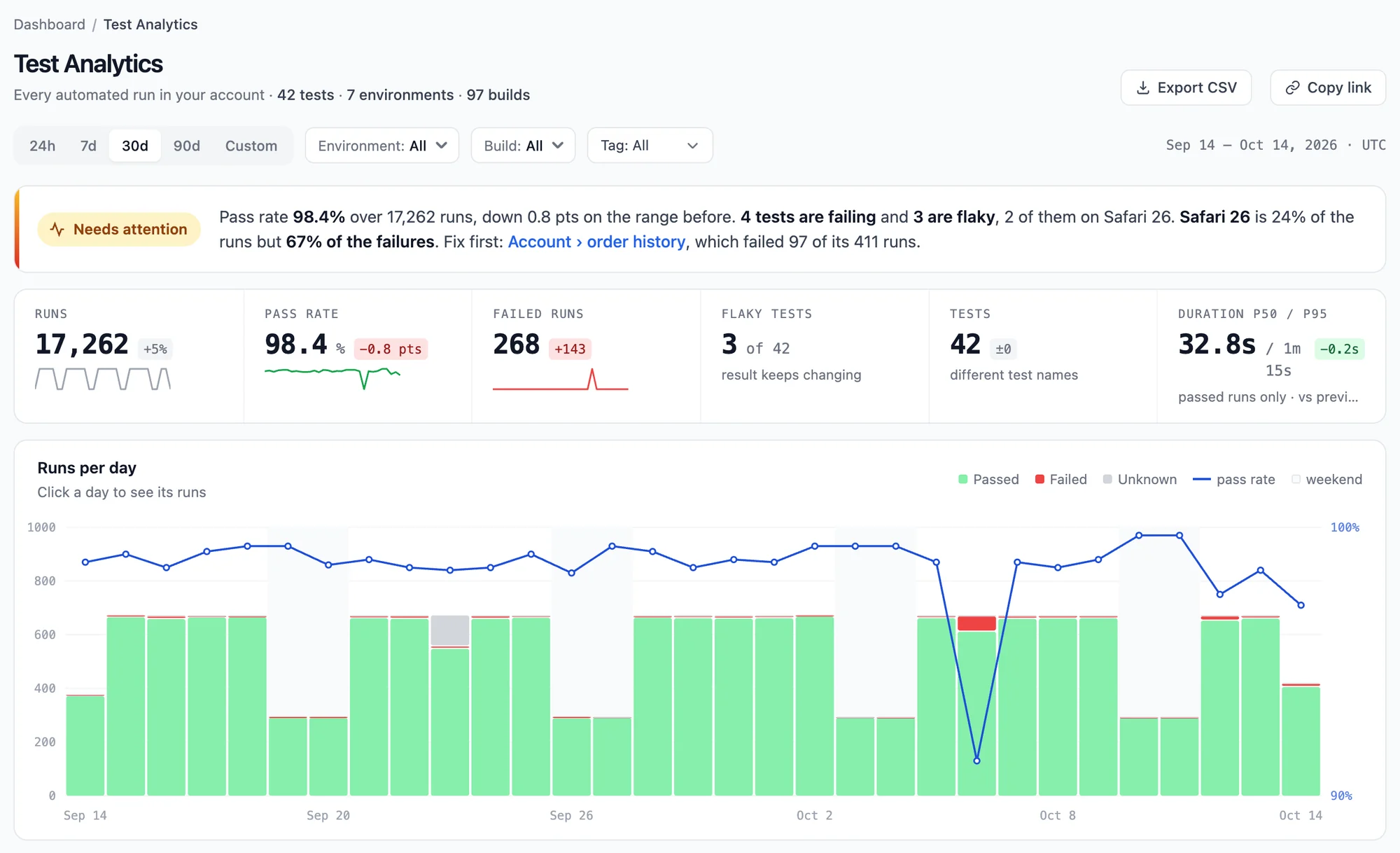
The four views
Test Analytics is a set of linked pages. You start wide and drill down by clicking: a day in the chart, a test in a table, a run in a list.
| View | Answers | Where to find it |
|---|---|---|
| Test Analytics dashboard | How healthy is the whole suite? Which tests need attention, which errors fail the most runs, which environment fails more than it should? | Analytics in the sidebar |
| A day of runs | What changed on this day compared with the day before, what broke, what got fixed? | Click a day in the Runs per day chart |
| All runs of a test | Is this one test stable, flaky, failing or broken by a build? On which environment, since when and with which error? | Click a test in Needs attention, or All runs on a test's detail page |
| Build analytics | Can this build merge? What did it break compared with the build before, and how well did it use parallel sessions? | Automated Builds, or a build in Recent builds |
How each label is decided (flaky, failing, broken, newly failing, slower, flips, p50 and p95) is explained on Metrics and definitions.
Get the most out of Test Analytics
Test Analytics reads what your tests send to TestingBot. Four capabilities make the difference between a list of sessions and real analytics:
| Send | Why it matters |
|---|---|
A test name (name) |
Runs are grouped into a test by their exact name. Without a stable name, every run is a test of its own and nothing can be called flaky or failing. Use the same name every time the same test runs, and a different name for each test. |
| The result (passed or failed) | TestingBot cannot know whether your assertions passed. Runs without a result count as unknown: they are not in the pass rate. Most frameworks can report the result automatically; see for example marking Playwright tests. |
A build (build) |
Groups the runs of one CI run. Builds unlock Recent builds, new failures per build, the build page, and the Broken verdict ("build X failed every run"). |
Groups (groups) |
Tags your runs, for example per project, team or suite. Every tag becomes a value of the Tag filter. |
Some suites put the build number in each test name, such as nightly 20261008.1 - Login.
The build page takes the build's name off the front of the test name when it compares builds, but Test Analytics groups runs by their full name.
Keep the build number in the build capability instead, so all runs of a test share one name.
What is counted
- Automated runs only. Manual Live sessions are not part of Test Analytics.
- Your whole account. Runs started by your team members are included. Use the Started by filter to look at one person's runs.
- Finished runs, by start time. A run belongs to the day it started on.
-
UTC. Days and ranges are in UTC, whatever your time zone. The range is shown on the right of the filter bar, for example
Sep 15 – Oct 14, 2026 · UTC. - Durations of passed runs only. A failed run stops early or hangs until a timeout, so the p50 and p95 durations are measured on passed runs.
- Against the range before. Every number with a change next to it is compared with the range of the same length just before the one you are looking at.
A typical triage
- Open Analytics. The line at the top says whether the range is Healthy or Needs attention, and names the test to fix first.
- In Needs attention, pick the Failing or Newly failing tab. Why it fails shows each test's latest error.
- Click a test to open All runs. The verdict says whether the test is broken by a build, failing on one browser, or flaky. Why it failed groups its failures by error.
- Click a run in the chart or the table. It opens in the test panel next to the list, with its video, steps, logs and the failed step.
- Fixed it? The next day's page lists the test under Fixed today.
Sharing, exports and API
- Every view is a link. The range, filters and tabs are part of the URL. Use Copy link to share exactly what you are looking at with a team member.
- CSV export. Each view has an Export CSV button. The columns are listed on each page of this documentation.
- Insights API. Build your own dashboards on the same data with the Insights API: daily trends, a summary, top failure messages and per-test flakiness.
- Slack. The Slack integration answers Test Analytics questions from inside Slack.