Visual Studio App Center
Visual Studio App Center was retired by Microsoft on March 31, 2025 and is no longer operational. The integration described on this page is kept for historical reference. For current mobile-build CI options, see Bitrise, GitHub Actions, or GitLab CI.
Visual Studio App Center was a Microsoft product that built mobile apps in the cloud — connect a repository and App Center would build the app on every commit.
This integration allowed you to test builds generated by App Center on our mobile device cloud.
In this guide we'll show you:
- How to connect to the Visual Studio App Center API.
- Fetch the public link to the latest build.
- Upload the build to TestingBot Storage for testing.
Retrieve API Token
To get started, you'll need to log into Visual Studio App Center and generate an API key.
- Sign into your App Center account.
- Go to Account Settings and choose User API Tokens.
- Click the New API Token button.
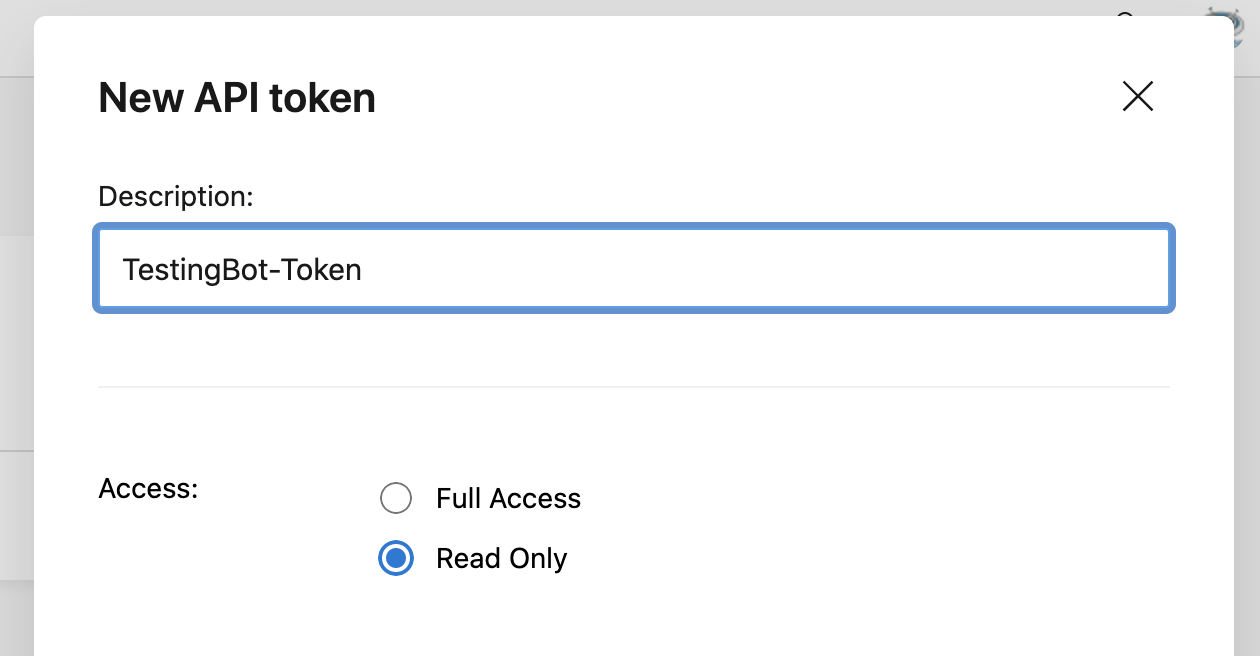
- Add a description for your token, for example TestingBot-Token.
- Give the token Read Only access.
- Generate and copy the API Token.
List All App Projects
Now that we have an API token, we can use it to fetch all app projects:
curl -sX GET "https://api.appcenter.ms/v0.1/apps" \
-H "Content-Type: application/json" \
-H "X-Api-Token: [YOUR-API-TOKEN]"
The response should be similar to this:
[{
  "id": "9c22426b-e23e-4389-9f4a-08ec2eb9e656",
  "app_secret": "3da37025-4548-4abe-8979-c0f097816e51",
  "description": null,
  "display_name": "testingbot-demo",
  "name": "testingbot-demo",
  "os": "Android",
  "platform": "React-Native",
  "origin": "appcenter",
  "icon_url": null,
  "created_at": "2020-08-19T08:39:21.000Z",
  "updated_at": "2020-08-19T08:39:21.000Z",
  "release_type": null,
  "owner": {
    "id": "4a05e941-f5be-4cfe-8b25-3887a768578f",
    "avatar_url": null,
    "display_name": "TestingBot",
    "email": "...",
    "name": "testingbot",
    "type": "user"
  },
  "azure_subscription": null,
  "member_permissions": ["manager"]
}, {
  ...
}]
Fetch build info from API
Now we can fetch the build information from the App Center API.
We'll need the name and owner.name from the previous response:
If you want to fetch the build of the latest release, please use:
curl -sX GET "https://api.appcenter.ms/v0.1/apps/[owner.name]/[name]/releases/latest" \
-H "Content-Type: application/json" \
-H "X-Api-Token: [YOUR-API-TOKEN]"
If you are looking to fetch the latest build (not necessarily released yet), please use:
curl -sX GET "https://api.appcenter.ms/v0.1/apps/[owner.name]/[name]/branches/master/builds" \
-H "Content-Type: application/json" \
-H "X-Api-Token: [YOUR-API-TOKEN]"
Then copy the build id and use:
curl -sX GET "https://api.appcenter.ms/v0.1/apps/[owner.name]/[name]/builds/[build-id]/downloads/build" \
-H "Content-Type: application/json" \
-H "X-Api-Token: [YOUR-API-TOKEN]"
The response should contain a URL which points to the build, similar to this example:
{"uri": "https://build.appcenter.ms/v0.1/public/apps/9c22426b-e23e-4389-9f4a-oefkoe/downloads?token=6663fc99b13e70dsfds856c8a302e9d7398fkjecfc72b0c133bcf4035"}Upload build
Now that you've retrieved the build URL, you can upload this build to TestingBot Storage.
curl -X POST "https://api.testingbot.com/v1/storage" \
-u API_KEY:API_SECRET -d "url=[BUILD-URL]"
This will return a unique URL {"app_url": "tb://..."} which you can use with your tests.
Simply add the tb://... as an app capability to run your tests: more information.
