TestingBot AI Insights
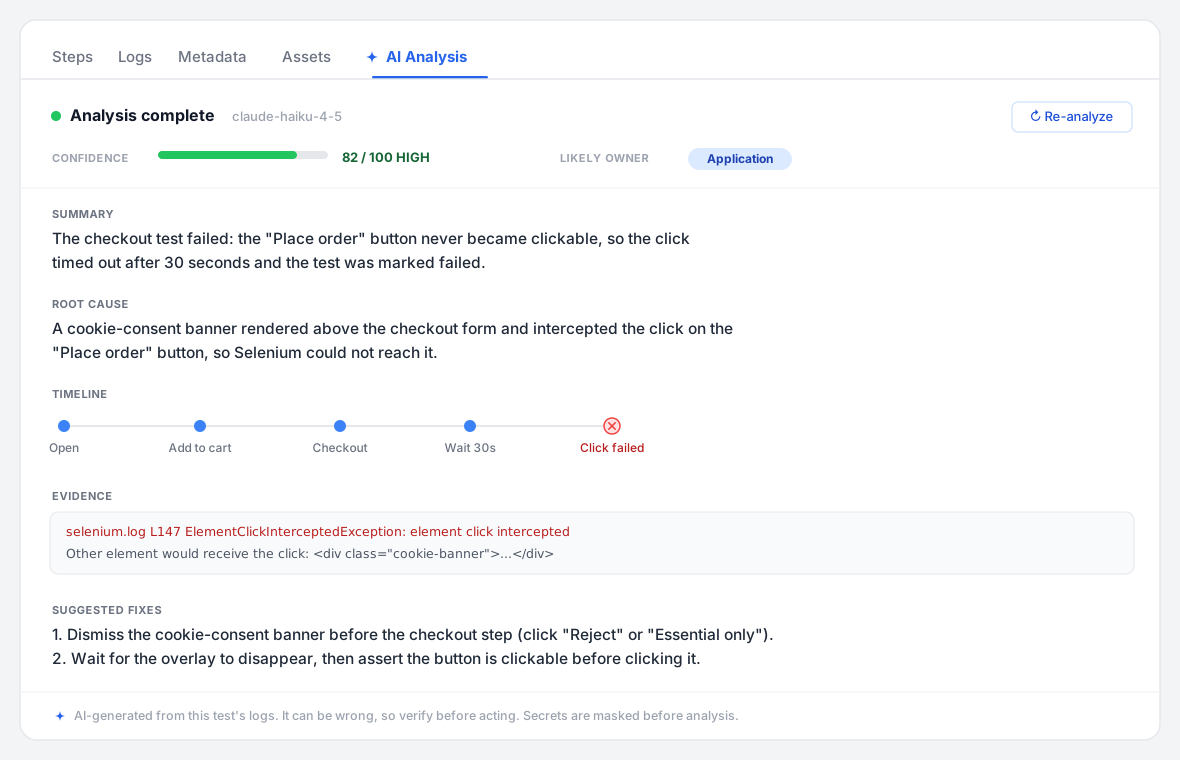
TestingBot AI Insights is an AI-powered test failure analysis feature. When an automated test fails, whether it is a Selenium, Appium, Playwright, Puppeteer, Cypress, Espresso, XCUITest or Maestro test, AI Insights reads the test's logs and explains, in plain language, why it failed: the most likely root cause, a timeline of what happened, the supporting evidence from the logs, and a suggested fix, together with a confidence score.
Instead of scrolling through a long command log to work out what went wrong, you open the test and read a short, structured explanation.
How to enable it
AI Insights is off by default and must be enabled per account by the account owner. Because your test logs are sent to a third-party AI provider for analysis, enabling it records an explicit consent.
- Sign in as the account owner and go to Account Settings.
- In the AI Analysis section, read what is sent, then tick the consent checkbox and save.
- The AI Analysis tab will now appear on your test detail pages.
Team members cannot enable the feature themselves: it is an account-level setting controlled by the owner. You can disable it again at any time from the same screen, which immediately stops any further data being sent.
Using AI Insights
Open a test at Tests → (your test) and select the AI Analysis tab.
- Failed tests are analyzed automatically the first time you open the tab. The explanation streams in section by section.
- Passed tests are not analyzed automatically, but you can choose Analyze anyway.
- Results are cached, so reopening a test shows the previous analysis instantly with no extra cost.
- Use Re-analyze to run a fresh analysis, for example after you have changed the test.
What you get
A completed analysis is presented as a set of sections:
- Summary: one or two sentences on what the test was doing and how it failed.
- Root cause: the single most likely reason for the failure.
- Likely owner: where the problem most likely sits, classified as application, test script, environment, flaky or unknown.
- Confidence: a score from 0 to 100 (shown as low, medium or high). When confidence is low, the likely owner is shown as a tentative "best guess" rather than a firm verdict.
- Timeline: the key events leading up to the failure.
- Evidence: the specific log lines and commands that support the conclusion.
- Suggested fixes: one to three concrete, ranked suggestions.
AI Insights is an assistant, not an oracle. It can be wrong, especially on ambiguous failures such as flaky timing issues or visual differences, where it will tell you the confidence is low. Always verify before acting on a suggestion.
What data is sent
AI Insights sends a small, curated, text-only slice of the test to the AI provider. It is built from artifacts you already have on TestingBot:
- The failing step and the steps around it.
- A filtered, compressed tail of the most relevant driver or device log (for example the Selenium, Appium, Playwright, logcat or iOS log), focused on errors, warnings and the failure window.
- For native runners (Espresso, XCUITest, Maestro), the failing test results and their stacktraces or error messages.
- For Maestro, the flow definition (the YAML that lists the intended steps), which helps explain which step failed and why.
- The test's status, status message and termination reason.
- The environment (browser or device, version and OS).
- For codeless AI tests, the natural-language test intent.
What gets stripped
Before anything leaves our servers, the curated text passes through an automated masking step that redacts detectable secrets and personal data and replaces them with placeholders such as <redacted:token>:
- API keys and tokens (including JWTs, AWS, Stripe, GitHub, Google and similar key formats).
- Passwords, including values typed into password fields during the test.
-
Authorization,Cookieand similar sensitive HTTP headers. - Private keys and other high-entropy secrets.
- Email addresses and card-number-shaped values.
This is best-effort masking (pseudonymization), not anonymization. It significantly reduces what is shared, but it cannot guarantee that every piece of sensitive data is removed. Only enable AI Insights for tests you are authorized to share, and prefer keeping secrets out of test logs in the first place. See our guidance on handling sensitive data.
Privacy and data handling
- AI provider: analysis is performed by Anthropic (United States), our AI sub-processor, under their standard Data Processing Addendum with EU Standard Contractual Clauses.
- No training: Anthropic does not use data sent through their commercial API to train their models.
- Short retention at the provider: inputs and outputs are deleted by Anthropic within 30 days by default.
- Consent: the feature is off until the account owner explicitly enables it, and it can be disabled at any time.
- Retention on TestingBot: a generated analysis is stored with the test and is removed when the test is pruned, in line with our standard 30-day retention of test logs and assets.
Availability and limits
- There are per-account daily and monthly limits to keep usage and cost bounded.
- Tests older than 30 days cannot be analyzed because their logs have been pruned.
- Tests that are still running cannot be analyzed until they complete.
Frequently Asked Questions
Which frameworks does AI Insights support?
AI Insights works with Selenium, Appium, Playwright, Puppeteer, Cypress, Espresso, XCUITest and Maestro tests, as well as codeless AI tests. For web and Appium tests it reads the command log and driver logs; for native mobile runners it reads the test results and stacktraces, the device log, and (for Maestro) the flow definition. Open the failing test or run and select the AI Analysis tab.
Will it analyze passing tests?
Not automatically. Passing tests show an "Analyze anyway" option if you want an explanation.
How accurate is it?
It is reliable for clear-cut failures such as assertion errors, element-not-found, timeouts and HTTP errors, and less certain for ambiguous cases such as flaky timing or visual differences. The confidence score reflects this, and low-confidence verdicts are clearly marked.
How do I turn it off?
The account owner can disable it from Account Settings. Disabling it immediately stops any further data being sent.
Can I keep secrets out of the analysis entirely?
Yes. We mask detectable secrets automatically, but the best practice is to avoid logging sensitive values. See handling sensitive data.
