Assign member roles
Every person on your TestingBot team has two roles that work together. An IAM role controls administrative authority: who can manage the account, billing, and team. An RBAC role controls product capability: what they can do inside the testing products.
Both roles are shown for each person on the Team Members page. This guide explains how to change them. For the full breakdown of every permission, see Roles & Permissions and the RBAC overview.
Modify access
Go to the Team Members page, open the actions menu next to the member you want to update, and choose Modify access. A dialog opens with separate selectors for the IAM role and the RBAC role, plus the member's concurrency limit.
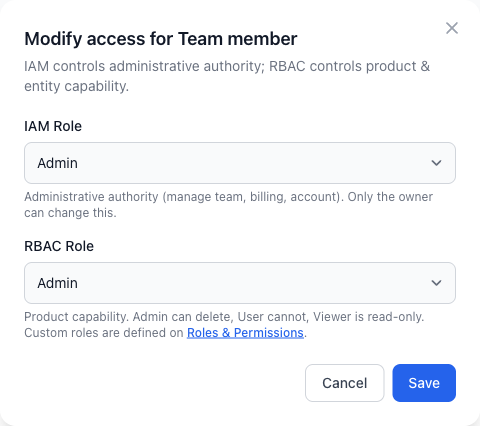
Adjust the role selectors as needed and save. The new permissions apply immediately on the member's next request.
IAM role
The IAM role decides how much administrative authority a member has over the account itself. Choose Owner, Admin, or User. Only the account owner can change a member's IAM role, and IAM roles are fixed (they cannot be customized).
- Owner: full administrative authority over the account, including transferring ownership and deleting the account. There is one owner per account.
- Admin: can manage team members, roles, billing, account settings, integrations, service accounts, and security. An Admin cannot transfer ownership or delete the account.
- User: no administrative authority. A User can still work in the products according to their RBAC role, but cannot manage the team, billing, or account settings.
The table below shows which administrative permissions each IAM role grants.
| Administrative permission | Owner | Admin | User |
|---|---|---|---|
| View team members | ✓ | ✓ | · |
| Manage team members | ✓ | ✓ | · |
| Manage roles | ✓ | ✓ | · |
| View billing | ✓ | ✓ | · |
| Manage billing | ✓ | ✓ | · |
| View account settings | ✓ | ✓ | · |
| Manage account settings | ✓ | ✓ | · |
| Manage integrations | ✓ | ✓ | · |
| Manage service accounts | ✓ | ✓ | · |
| Manage security | ✓ | ✓ | · |
| Transfer ownership | ✓ | · | · |
| Delete account | ✓ | · | · |
RBAC role
The RBAC role decides what a member can do inside the products. Choose Admin, User, or Viewer. On Enterprise plans you can also assign a custom role. Any team admin can change a member's RBAC role.
- Admin: full product capability, including running and deleting tests across every product your plan includes.
- User: can view and run tests, but cannot delete tests.
- Viewer: read-only. A Viewer can view tests, reports, and integrations, but cannot run or delete tests.
The table below shows which product capabilities each RBAC role grants.
| Product capability | Admin | User | Viewer |
|---|---|---|---|
| Live Web Testing | ✓ | ✓ | ✓ |
| Live App Testing | ✓ | ✓ | ✓ |
| Automated Testing | ✓ | ✓ | ✓ |
| Visual Testing | ✓ | ✓ | ✓ |
| Accessibility Testing | ✓ | ✓ | ✓ |
| AI Testing | ✓ | ✓ | ✓ |
| View tests | ✓ | ✓ | ✓ |
| Run tests | ✓ | ✓ | · |
| Delete tests | ✓ | · | · |
| View integrations | ✓ | ✓ | ✓ |
| View reports | ✓ | ✓ | ✓ |
Each product capability also requires your plan to include that product. A member's effective product access is the combination of the plan including the product and the RBAC role granting access to it. The account owner and service accounts always have full RBAC capability. Custom roles are RBAC-only and can never grant IAM permissions.
Concurrency limit
From the same Modify access dialog you can set how many parallel tests the member is allowed to run. This caps the member's share of your account's total parallel capacity. For details on how concurrency is allocated across the team, see the concurrency section in Team & Sub-Accounts.
Auditing
Every role change is recorded so you always know who changed what and when. Review these entries in the Activity Log.
