Azure DevOps Integration
Enable the Azure DevOps integration to report bugs straight from your tests: create a new Azure DevOps work item or update an existing one, with test metadata, screenshots and a link back to the test included automatically.
A Report a bug button appears on every test detail page, and during a Live Testing session you can file an annotated screenshot as an Azure DevOps work item.
Connect Azure DevOps
Go to Members > Integrations and click Azure DevOps, then click Connect with Azure DevOps.
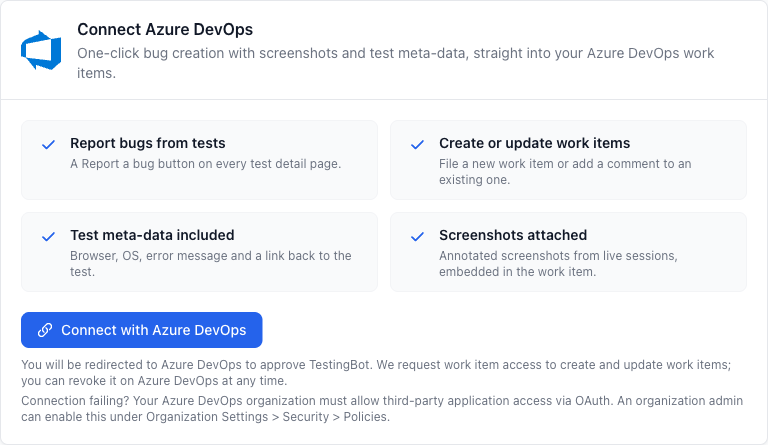
You will be redirected to Microsoft to authorize TestingBot. We request work item access (vso.work_write) so we can create and update work items on your behalf, plus project access (vso.project) so we can list your organizations and projects. We never see your password, and you can revoke access at any time from your Azure DevOps profile settings.
Once connected, the page shows the Azure DevOps account TestingBot is connected as.
Is an organization not showing up after connecting? Some organizations block OAuth apps by default. An organization administrator needs to enable Third-party application access via OAuth in Organization Settings > Security > Policies before TestingBot can access that organization.
Report a bug
Open any test from the Test Detail page. In the header you will find a Report a bug button. Once one or more work items are linked to the test, the same button shows the number of linked work items instead.
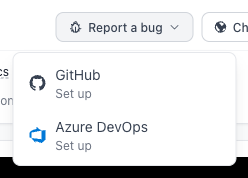
Click it and choose Azure DevOps from the menu.
This opens a dialog. Pick the Organization and Project you want to file the work item in, choose a Work Item Type (for example Bug, Task or User Story, depending on your project's process template), then fill in the Title and Description. The description is pre-filled with the test metadata.
You can optionally choose an Assignee from the project's team members.
Click Create work item. The work item is created in your project and TestingBot shows a link to view it on Azure DevOps. The work item is also linked to the test, so teammates opening the same test can see which work items were already reported.
Update an existing work item
Already have a work item for this bug? Switch to the Update existing work item tab, select one of the project's recent work items from the Work Item dropdown and write a comment. The comment is pre-filled with the test metadata and is added to the work item's discussion on Azure DevOps.
Updating a work item links it to the test as well, so the test's work item counter includes work items you commented on.
What gets included
The pre-filled description (or comment) contains a metadata block with:
- The test name, linked to a shareable test page with the video, screenshots and logs
- The test result (passed or failed)
- The browser or device and operating system the test ran on
- The error message, when the test failed with one
You can edit or remove any of this before submitting. Whoever opens the work item on Azure DevOps can follow the test link to watch the video and inspect the logs, without needing a TestingBot account.
Live Testing
During a manual Live Testing session, click Report Bug to take a screenshot and annotate it in the editor. Then click Report a bug and choose Azure DevOps.
The same dialog appears; the annotated screenshot is uploaded and attached at the top of the work item or comment, together with the session metadata.
Disconnect
To disconnect Azure DevOps, go to the Azure DevOps integration page and click Disconnect. Type Disconnect in the confirmation dialog to confirm.
Work items that were already linked to your tests stay linked and are not removed. You can reconnect at any time; reconnecting with the same or another Azure DevOps account does not affect previously created work items.
