TestingBot Buildkite Plugin
This guide will help you integrate the TestingBot Buildkite Plugin in your Buildkite pipelines.
The plugin wraps your build step with everything needed to run tests on the TestingBot browser and device cloud:
- Starts a TestingBot Tunnel before your step and stops it afterwards, so your tests can reach servers behind your firewall or on the build agent itself.
- Marks your TestingBot tests as passed or failed through the TestingBot REST API, based on the outcome of your build step.
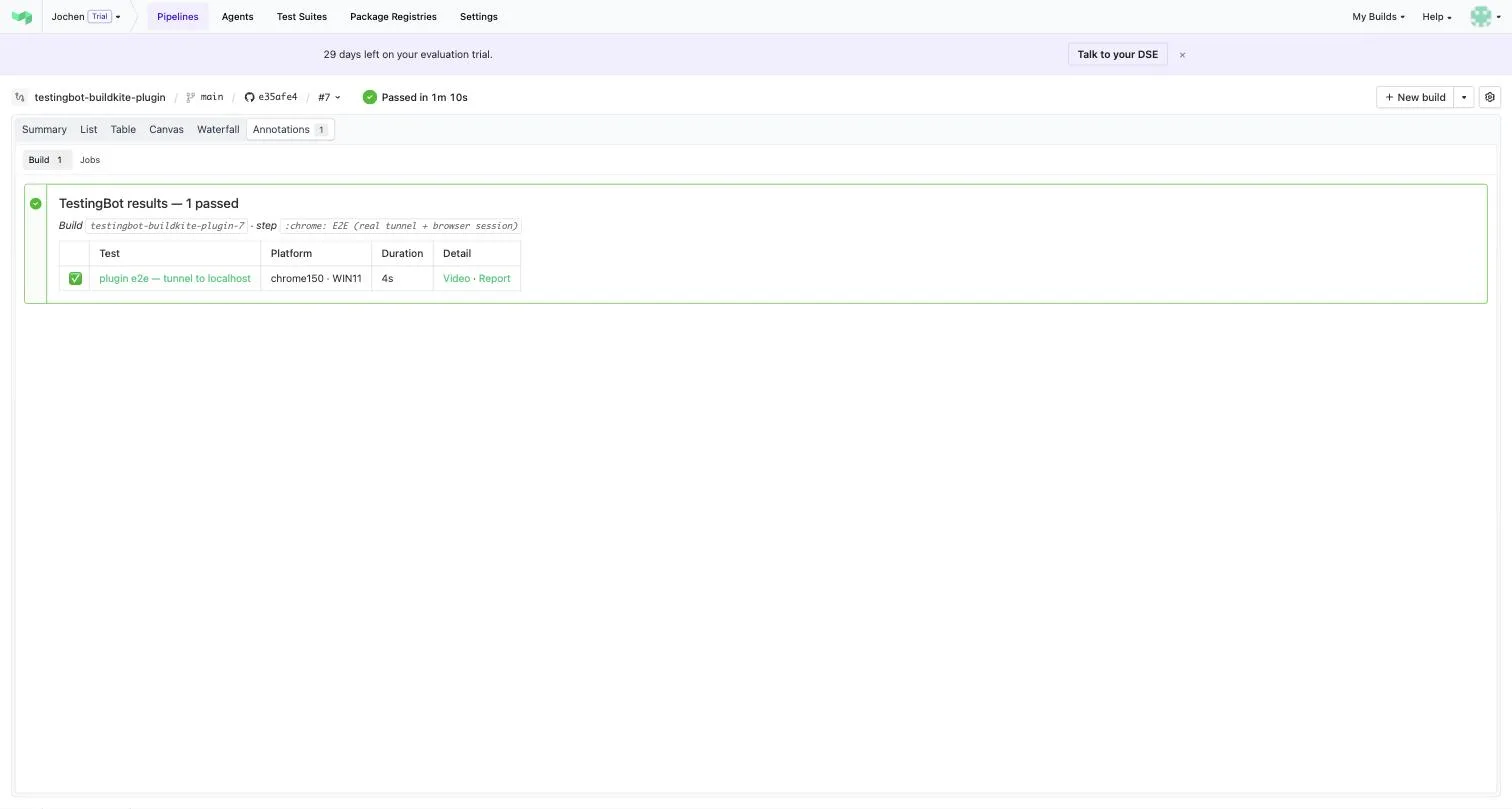
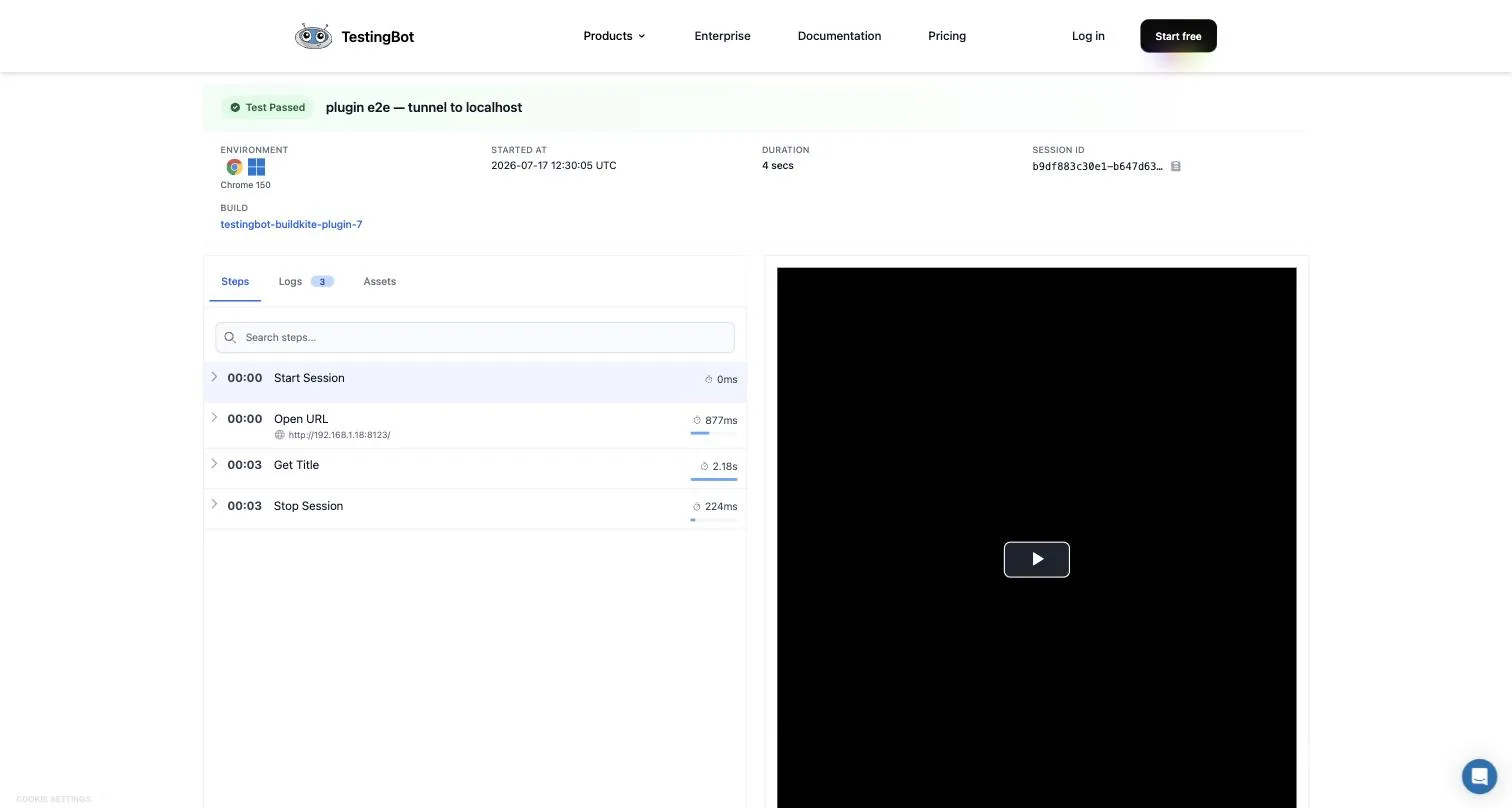
- Annotates the Buildkite build page with a test results table, linking to the full report, video and screenshots of every test on TestingBot.
Credentials
The plugin reads your TestingBot key and secret from the TESTINGBOT_KEY and
TESTINGBOT_SECRET environment variables on the Buildkite agent.
Never put these values in your pipeline YAML; provide them through an
agent environment hook,
your secrets manager, or Buildkite secrets.
You can obtain both values from the TestingBot member area.
If your secrets are stored under different environment variable names, point the plugin at them with the
api-key-env and api-secret-env options.
Set up the Plugin
Add the plugin to a step in your pipeline.yml:
steps:
  - label: "E2E tests"
    command: npm run test:e2e
    plugins:
      - testingbot/testingbot#v1.0.0: ~
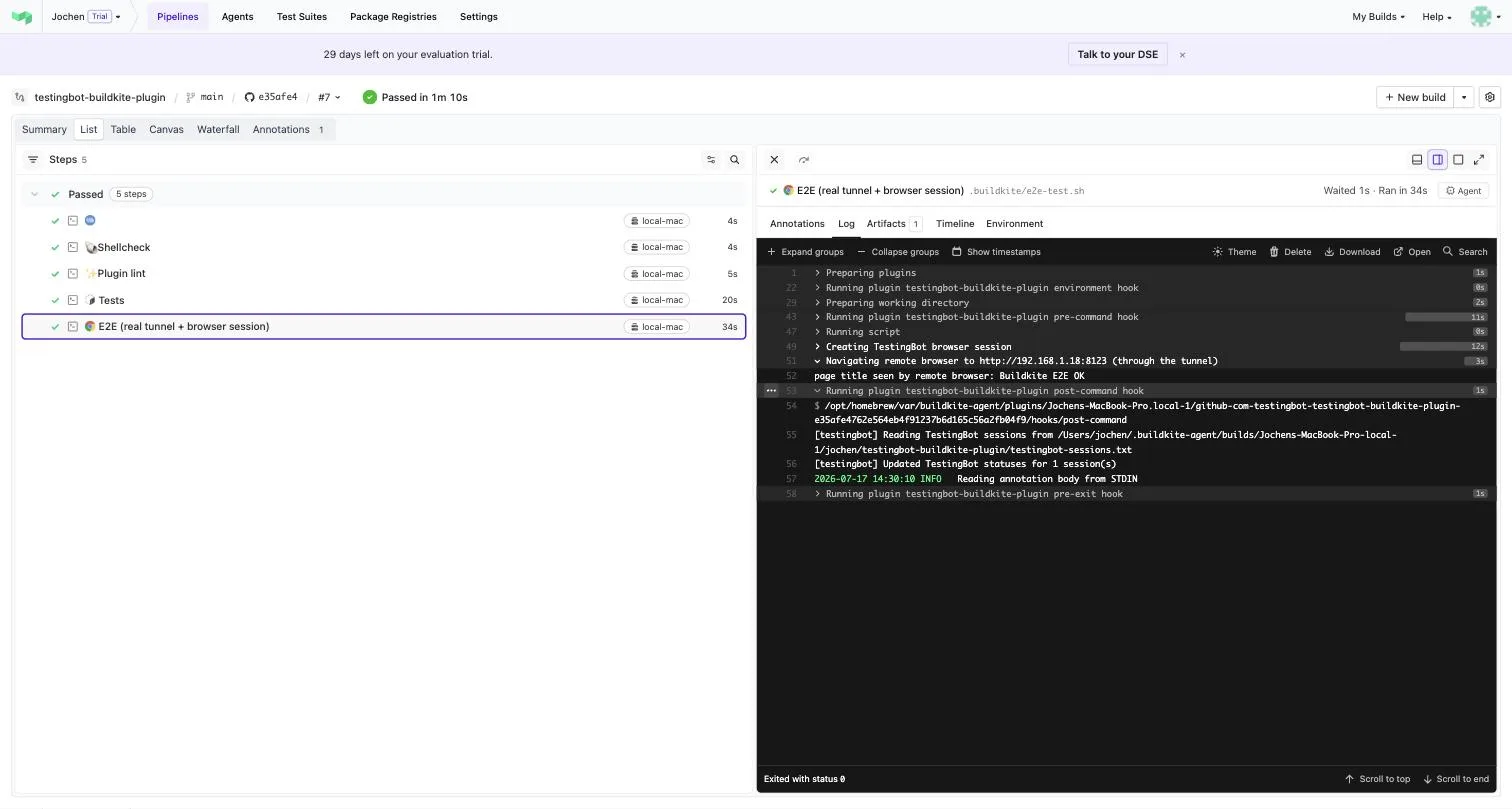
That's it — with the default configuration the plugin starts a tunnel before npm run test:e2e,
stops it afterwards, updates the status of every TestingBot session started by your tests and posts a results annotation on the build.
Everything is configurable, for example:
steps:
  - label: "E2E tests"
    command: npm run test:e2e
    plugins:
      - testingbot/testingbot#v1.0.0:
          tunnel-identifier: "%job-id%"
          tunnel-args:
            - "--nocache"
          tunnel-ready-timeout: 180
Or, if you only want status updates and annotations without a tunnel:
steps:
  - label: "E2E tests"
    command: npm run test:e2e
    plugins:
      - testingbot/testingbot#v1.0.0:
          tunnel: false
TestingBot Tunnel
The tunnel is a Java application: the Buildkite agent needs Java 17 or higher (tunnel 5.0 and later; 4.x ran on Java 11) on its
PATH. The plugin downloads the tunnel once and caches it on the agent.
There are two ways to route your tests' traffic through the tunnel:
-
Point your tests at the tunnel's local relay,
http://localhost:4445/wd/hub, instead ofhttps://hub.testingbot.com/wd/hub. You can move the relay to another port withtunnel-args: ["--se-port", "8446"]. -
Keep using
https://hub.testingbot.com/wd/huband configure atunnel-identifieron the plugin. Your tests then pass the same value as thetunnel-identifiercapability intb:options. The plugin exports the identifier as$TESTINGBOT_TUNNEL_IDENTIFIER, with%job-id%replaced by the Buildkite job id — recommended for parallel jobs.
The plugin waits for the tunnel to be ready before your command runs, and fails the step with the tunnel log if the tunnel could not be started.
Example Test
The plugin exports $TESTINGBOT_BUILD (defaults to
pipeline-slug-build-number) and, when configured, $TESTINGBOT_TUNNEL_IDENTIFIER.
Use them in your test's capabilities so TestingBot groups all sessions of this Buildkite build together:
#!/usr/bin/env ruby

require 'rubygems'
require 'selenium-webdriver'

options = Selenium::WebDriver::Chrome::Options.new
options.add_option('platformName', 'WIN11')
options.add_option('browserVersion', 'latest')
options.add_option('tb:options', {
  'key' => ENV['TESTINGBOT_KEY'],
  'secret' => ENV['TESTINGBOT_SECRET'],
  'name' => 'Buildkite Test',
  'build' => ENV['TESTINGBOT_BUILD'],
  'tunnel-identifier' => ENV['TESTINGBOT_TUNNEL_IDENTIFIER']
})

driver = Selenium::WebDriver.for(
  :remote,
  url: "https://hub.testingbot.com/wd/hub",
  options: options)
driver.navigate.to "http://localhost:8080"
puts driver.title
driver.quit
import os
from selenium import webdriver
from selenium.webdriver.chrome.options import Options
options = Options()
options.set_capability('platformName', 'WIN11')
options.set_capability('browserVersion', 'latest')
options.set_capability('tb:options', {
'key': os.environ['TESTINGBOT_KEY'],
'secret': os.environ['TESTINGBOT_SECRET'],
'name': 'Buildkite Test',
'build': os.environ.get('TESTINGBOT_BUILD'),
'tunnel-identifier': os.environ.get('TESTINGBOT_TUNNEL_IDENTIFIER')
})
driver = webdriver.Remote(
command_executor='https://hub.testingbot.com/wd/hub',
options=options
)
driver.get("http://localhost:8080")
print(driver.title)
driver.quit()import org.openqa.selenium.WebDriver;
import org.openqa.selenium.chrome.ChromeOptions;
import org.openqa.selenium.remote.RemoteWebDriver;
import java.net.URL;
import java.util.HashMap;
import java.util.Map;
public class BuildkiteTest {
public static final String KEY = System.getenv("TESTINGBOT_KEY");
public static final String SECRET = System.getenv("TESTINGBOT_SECRET");
public static final String URL = "https://hub.testingbot.com/wd/hub";
public static void main(String[] args) throws Exception {
ChromeOptions options = new ChromeOptions();
options.setCapability("browserVersion", "latest");
options.setCapability("platformName", "WIN11");
Map<String, Object> tbOptions = new HashMap<>();
tbOptions.put("key", KEY);
tbOptions.put("secret", SECRET);
tbOptions.put("name", "Buildkite Test");
tbOptions.put("build", System.getenv("TESTINGBOT_BUILD"));
tbOptions.put("tunnel-identifier", System.getenv("TESTINGBOT_TUNNEL_IDENTIFIER"));
options.setCapability("tb:options", tbOptions);
WebDriver driver = new RemoteWebDriver(new URL(URL), options);
driver.get("http://localhost:8080");
System.out.println(driver.getTitle());
driver.quit();
}
}const webdriver = require('selenium-webdriver');
const chrome = require('selenium-webdriver/chrome');
async function runBuildkiteTest () {
let options = new chrome.Options();
options.set('platformName', 'WIN11');
options.set('browserVersion', 'latest');
options.set('tb:options', {
'key': process.env.TESTINGBOT_KEY,
'secret': process.env.TESTINGBOT_SECRET,
'name': 'Buildkite Test',
'build': process.env.TESTINGBOT_BUILD,
'tunnel-identifier': process.env.TESTINGBOT_TUNNEL_IDENTIFIER
});
let driver = new webdriver.Builder()
.usingServer('https://hub.testingbot.com/wd/hub')
.withCapabilities(options)
.build();
await driver.get("http://localhost:8080");
const title = await driver.getTitle();
console.log(title);
await driver.quit();
}
runBuildkiteTest();Reporting Sessions to the Plugin
For status updates and annotations, the plugin needs to know which TestingBot sessions belong to the build step. There are two mechanisms, checked in this order:
1. Sessions file
Append each WebDriver session id to the file named by $TESTINGBOT_SESSIONS_FILE
(default testingbot-sessions.txt in the checkout), one per line, optionally followed
by a per-test status and name:
<session-id> [passed|failed] [test name]For example in a WebdriverIO afterSession hook:
afterSession: async function (config, capabilities, specs) {
  const status = global.testFailed ? 'failed' : 'passed';
  fs.appendFileSync(process.env.TESTINGBOT_SESSIONS_FILE,
    `${browser.sessionId} ${status} ${specs[0]}\n`);
}
Per-line statuses override the step outcome, giving you accurate per-test results. This mechanism is recommended when multiple parallel Buildkite jobs share one build.
2. Build capability
Alternatively, set the build capability of your tests to
$TESTINGBOT_BUILD, as shown in the example above. The plugin then
finds the sessions through the TestingBot API, without any code changes to your tests.
Test Statuses
After your command finishes, the plugin marks every reported session as passed or failed on TestingBot:
- If the build step succeeded, sessions are marked as passed.
- If the build step failed, sessions are marked as failed.
- A per-line
passed/failedstatus in the sessions file always takes precedence.
Each test's status message links back to the Buildkite build, so you can navigate from a test on TestingBot straight
to the build that ran it. Set update-status: false to disable this behavior.
Build Annotations
The plugin annotates the Buildkite build with a results table: pass/fail per test, platform, duration, and links to the report and video of each test on TestingBot.
Failed tests get a collapsible detail section, with a screenshot of the failure uploaded as a Buildkite artifact.
By default, links in the annotation use TestingBot share URLs: anyone who can
see the Buildkite build page can open the test report and video without a TestingBot login. The share hash only
grants view access to that specific test. Set share-links: false to use links that
require a TestingBot login instead.
Configuration
The TestingBot Buildkite Plugin accepts the following configuration options:
| Option | Description |
|---|---|
tunnel
|
Start a TestingBot Tunnel before the command and stop it after. Default is true.
|
tunnel-identifier
|
Identifier for the tunnel connection. %job-id% is replaced with the Buildkite job id,
recommended for parallel jobs. Exported as $TESTINGBOT_TUNNEL_IDENTIFIER.
|
tunnel-args
|
Extra flags passed verbatim to the tunnel, see the command line options. |
tunnel-ready-timeout
|
Seconds to wait for the tunnel to become ready before failing the step. Default is 120.
|
tunnel-download-url
|
Override the tunnel download URL, for example an internal mirror. |
annotate
|
Create a build annotation with the test results. Default is true. Rich annotations
require jq on the agent.
|
share-links
|
Use no-login share URLs in the annotation. Default is true.
|
thumbnails
|
Upload failure screenshots as Buildkite artifacts and embed them in the annotation. Default is true.
|
update-status
|
Update TestingBot test statuses based on the step outcome. Default is true.
|
sessions-file
|
Path, relative to the checkout, where tests write session ids. Default is testingbot-sessions.txt.
Exported as $TESTINGBOT_SESSIONS_FILE.
|
build-identifier
|
TestingBot build identifier, exported as $TESTINGBOT_BUILD. Default is
pipeline-slug-build-number.
|
api-key-env
|
Name of the environment variable holding your TestingBot key. Default is TESTINGBOT_KEY.
|
api-secret-env
|
Name of the environment variable holding your TestingBot secret. Default is TESTINGBOT_SECRET.
|
strict
|
Fail the step when status updates or annotations fail. Default is false (warn only).
|
Artifacts
The plugin uploads the tunnel log as a Buildkite artifact for every job, so you can inspect what happened with the TestingBot Tunnel. When a test fails, its failure screenshot is uploaded as an artifact as well and embedded in the build annotation.
More Information
The plugin is open source and listed in the Buildkite plugins directory. More information, including framework examples and the full changelog, is available in the TestingBot Buildkite Plugin repository.