Firebase App Distribution Integration
Connect Firebase App Distribution to test your app releases on TestingBot's real device cloud without uploading builds by hand. Once connected, pick a Firebase project, an app and a specific release straight from the live App device picker, choose a device and start an interactive session. TestingBot installs the selected release on the device for you.
The integration uses your own Google OAuth credentials (bring-your-own client), so TestingBot only ever has read access to the project, apps and releases you grant, and you can revoke it from Google at any time.
Prerequisites
Before connecting, set up an OAuth 2.0 client in Google Cloud for the Firebase project you want to test:
- We recommend creating a separate Firebase project for App Live testing.
- Make sure you have at least Viewer access to the target project, and add the teammates who need access at the project level in Firebase.
- In the Google Cloud Console, create an OAuth client ID of type Web application.
- Add the following authorized redirect URI to that OAuth client:
https://testingbot.com/members/integrations/firebase/callback
Then download the OAuth client's JSON config file (it contains the project ID, client ID and client secret), or copy those three values, you will need them in the next step.
Because TestingBot uses your own OAuth client, the OAuth consent screen for that client must be published, or your Google account must be added as a test user on it. Otherwise Google blocks the sign-in and the connection fails.
Connect Firebase
Go to Members > Integrations and click Firebase App Distribution, or open the live App device picker, choose Firebase App Distribution as the source and click Connect.
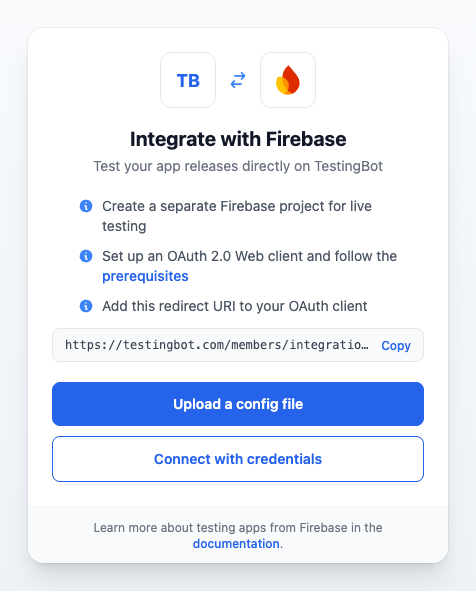
You can connect in two ways:
- Upload a config file — select the OAuth client JSON file you downloaded from Google Cloud. TestingBot reads the project ID, client ID and secret from it and fills in the form for you.
-
Connect with credentials — enter the
Project ID,Client IDandSecret keymanually.
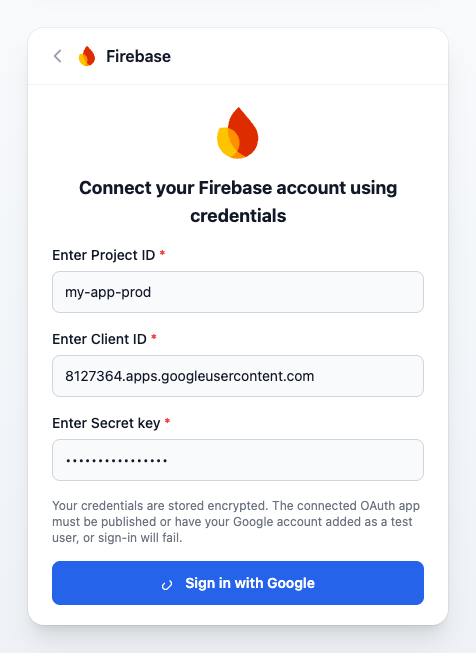
Click Sign in with Google. You will be redirected to Google to choose your account and grant access. TestingBot only requests read access to your project, its apps and their releases. When you approve, you are returned to TestingBot and the connection is active.
Connecting and disconnecting is an account-admin action. Regular team members can use a project that an admin has shared with the team, but cannot connect or remove the integration.
Test a release
Open the live App device picker and choose Firebase App Distribution as the source.
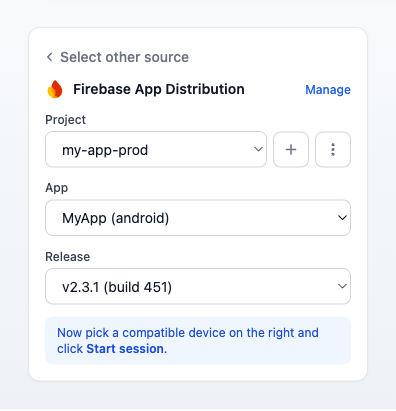
- Select a Project from the dropdown.
- Select an App (Android or iOS) in that project.
- Select a Release, the dropdown shows the version and build number of each release.
- Pick a compatible device on the right, incompatible devices (for example iOS devices for an Android build) are dimmed automatically, then click Start session.
TestingBot fetches the selected release straight from Firebase and installs it on the device, then opens an interactive live session. There is no separate upload step.
Manage projects
You can add more than one Firebase project and decide which ones your team can use. Manage them from the Firebase integration page or with the three-dot menu next to the project dropdown in the picker.
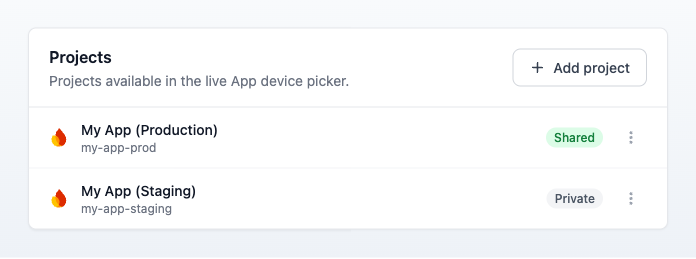
- Add project — add another Firebase project from the connected account to the picker.
- Share with team — make a project visible to your whole team. Members see shared projects read-only and can launch sessions from them; only admins can add, share or delete projects.
- Refresh — re-fetch the project's details from Firebase.
- Delete — remove a project from the picker. This affects every team member it was shared with.
Notes & limits
- Supported formats are
.apk(Android) and.ipa(iOS), matching what Firebase App Distribution stores. - TestingBot makes read-only calls to Firebase to list the project, its apps and their releases. It never modifies your Firebase project.
- The release is fetched fresh from Firebase each time you start a session, so you always test the build that is currently in Firebase.
- Your credentials and tokens are stored encrypted. If Google later expires or revokes the access, TestingBot prompts you to reconnect, these tokens are managed by Google, not by TestingBot.
Disconnect
To disconnect Firebase, go to the Firebase integration page and click Disconnect. This removes the saved connection and projects for your whole team. You can reconnect at any time.