Role-based access control
Role-based access control (RBAC) lets you control what each member of your team can see and do. TestingBot uses two types of roles. One type governs administrative authority over the account. The other governs which product capabilities a member can use. Keeping these separate lets you grant someone broad product access without making them an account administrator, or the other way around.
This page is an overview. It explains the two role types, the built-in roles, where to manage them, and how TestingBot decides whether a given action is allowed.
The two role types
Every team member has exactly one role of each type. The two types answer different questions and do not overlap.
- IAM (Identity & Access Management): administrative authority. This type decides who can manage the account itself, such as inviting and removing members, changing roles, managing billing and the subscription, and configuring team-wide settings. The IAM roles are Owner, Admin, and User. The Owner has full control of the account. Admins can manage most team and account settings. Users have no administrative authority.
- RBAC (Role-Based Access Control): product capability. This type decides what a member can do with the testing products, such as running and managing tests, viewing results, and changing test data. The RBAC roles are Admin, User, and Viewer, plus any custom roles you create. An Admin has full product capability. A User can run and manage tests but cannot delete them. A Viewer has read-only access.
Because the two role types are independent, a person can be an IAM User with no administrative power while holding an RBAC Admin role with full product capability, or any other combination that fits their responsibilities.
Built-in roles
Each role type ships with a fixed set of built-in roles. Built-in roles cannot be edited or removed. If you need finer-grained product permissions, create a custom role for the RBAC product capability.
| Type | Role | Description |
|---|---|---|
| IAM | Owner | Full control of the account, including billing, the subscription, and all members. There is one Owner per account. |
| IAM | Admin | Manages team members, roles, and most account settings. Cannot transfer ownership of the account. |
| IAM | User | No administrative authority. Belongs to the team but cannot manage members, roles, or billing. |
| RBAC | Admin | Full product capability. Can run, manage, and delete tests and test data across the team. |
| RBAC | User | Can run and manage tests. Cannot delete tests or test data. |
| RBAC | Viewer | Read-only access. Can view tests and results but cannot run or modify anything. |
Where to manage roles
Admins open Team Management and select the Roles & Permissions tab at /members/roles to review the built-in roles and to create custom RBAC roles.
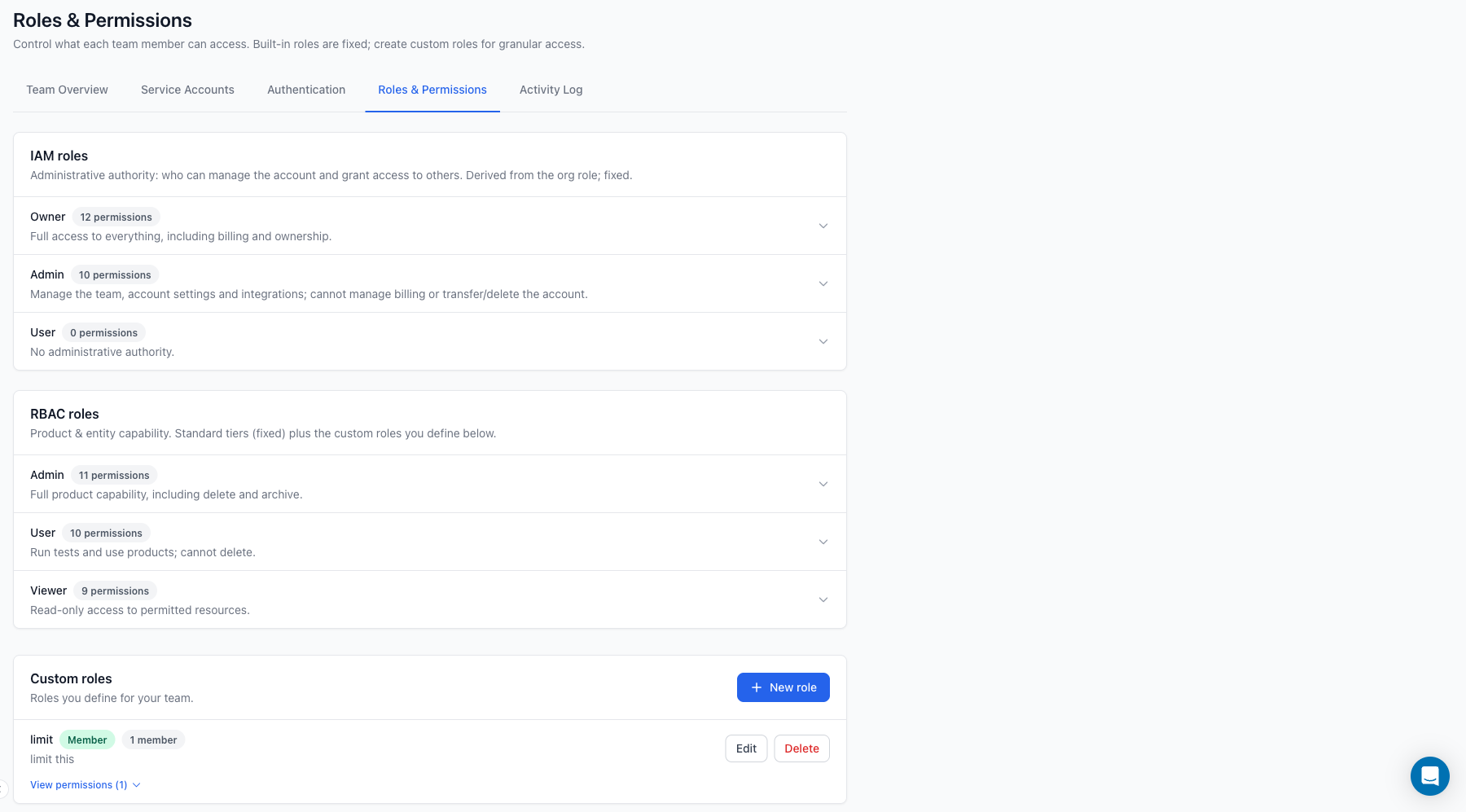
Each team member shows both an IAM role and an RBAC role on the Team Members page, where you can change either role for an individual member.
Custom RBAC roles let you define your own permission sets. See Custom roles for details.
How access is decided
When a member attempts an action, TestingBot resolves both roles.
- The IAM role is resolved from the member's role in the account (Owner, Admin, or User). This determines whether an administrative action is allowed.
- The RBAC role is resolved from the member's tier (Admin, User, or Viewer) or from the custom role assigned to them. This determines which product capabilities are granted.
- Product access also depends on your plan. A capability is available only when the RBAC role grants it and the plan includes it. Both conditions must be true, so a permission the plan does not cover is never available regardless of role.
The Owner always has full access and is never restricted by RBAC roles.
Learn more
- Roles & permissions reference: the full permission reference for the built-in roles.
- Custom roles: define your own RBAC permission sets.
- Member roles: assign IAM and RBAC roles to individual team members.
- Product access: how plans and RBAC roles combine to grant capabilities.
