Enforce Two-Factor Authentication
As a team admin you can require every member of your team to use two-factor authentication (2FA) when signing in to TestingBot. When enforcement is on, members who have not set up 2FA are guided through setup before they can use the dashboard, so your whole team is protected by a second factor, not just the people who opted in.
Enforcement is configured from the Authentication tab on your team management page. Any team admin (the account owner or a member with the Admin role) can turn it on or off. Two-factor authentication is a feature of our paid plans.
Turn on enforcement
Open the Authentication tab under your team management page (Members dashboard, then Team → Authentication), and follow these steps:

- Click Configure on the "Enforce two-factor authentication" card.
- Review the effects in the confirmation dialog.
- Click Confirm.
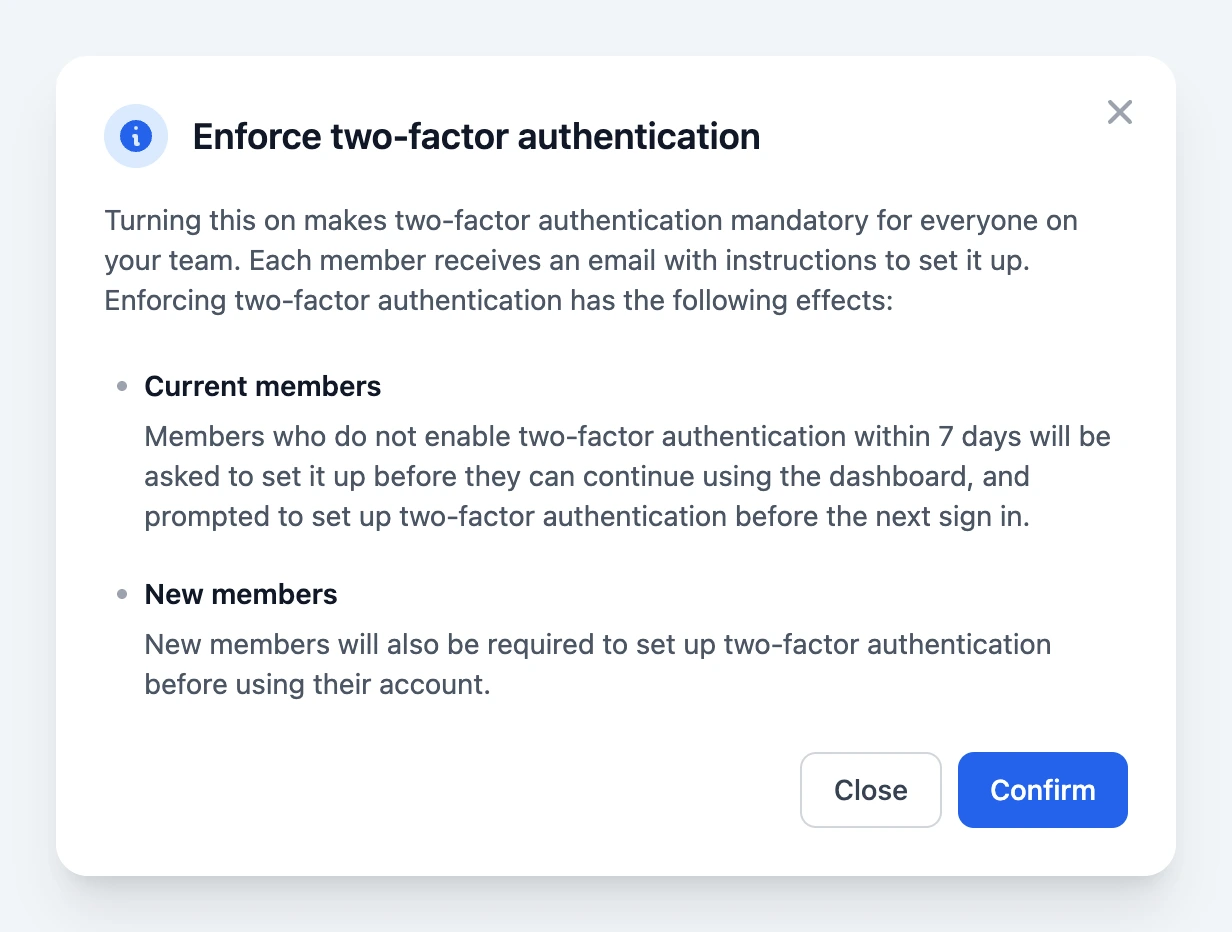
Every member who does not yet have 2FA is automatically emailed with instructions to set it up. The card then shows that enforcement is active, along with how many members have completed setup.

What happens when enforcement is on
- Everyone must comply. All human team members, including admins and the account owner, are required to use 2FA. Service accounts are API-only and cannot sign in to the dashboard, so they are excluded.
- Current members get 7 days. Members who already belong to the team have a 7-day grace period from the moment enforcement is enabled. After that, they are asked to set up 2FA before they can continue using the dashboard, and are prompted to set it up at their next sign in.
- New members set up immediately. Anyone added to the team after enforcement is enabled must set up 2FA before they can use their account.
-
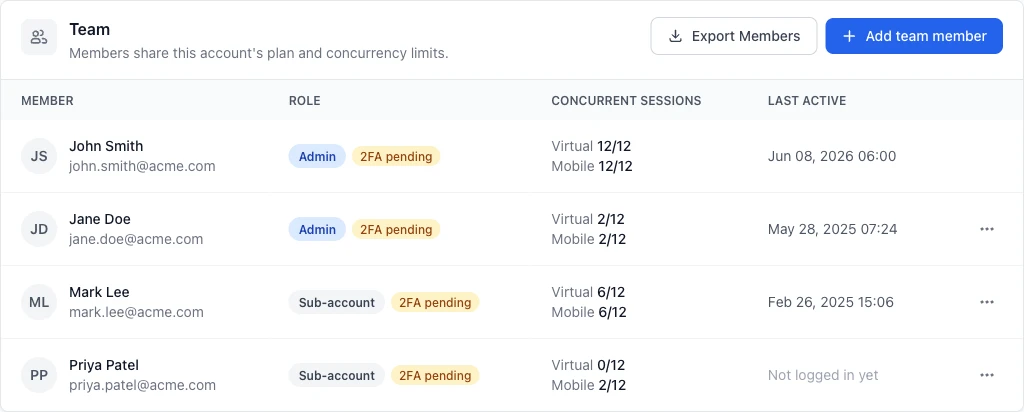
Pending members are flagged. On the Team Members list, anyone who has not yet set up 2FA shows a
2FA pendingbadge, so you can see compliance at a glance.
Members set up 2FA through the normal flow described in Two-Factor Authentication: an authenticator app (recommended) or SMS.
Reset a member's 2FA
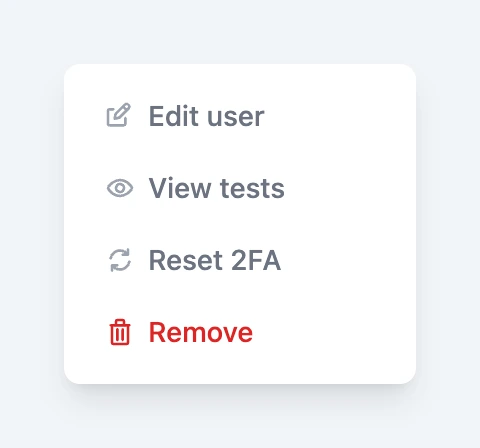
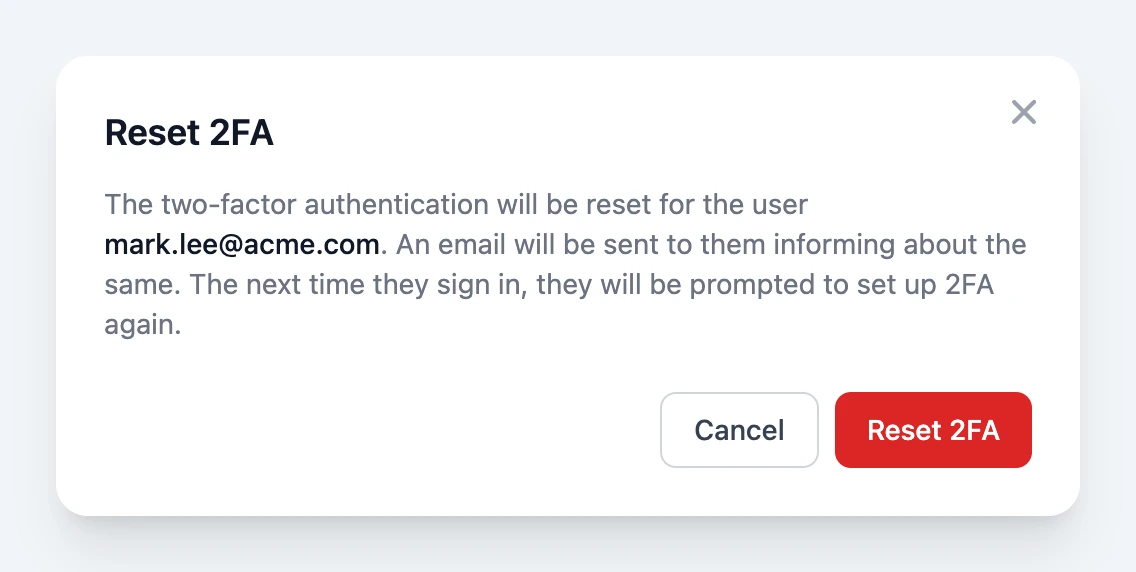
If a member loses access to their authenticator app or phone, a team admin can reset their 2FA. On the Team Members list, open the actions menu (…) next to the member and choose Reset 2FA.
The member's existing 2FA is removed and they are emailed about the change. The next time they sign in they are prompted to set up two-factor authentication again. Their old authenticator entry for TestingBot will no longer work, so they should remove it and add a fresh one during setup.
Disable enforcement
To stop requiring 2FA across your team, open the Authentication tab and click Disable enforcement. Members who already enabled 2FA keep it; they are simply no longer forced to use it. You can re-enable enforcement at any time.
