Manage custom roles
Custom roles let you define granular role-based access control (RBAC) roles for your team. Instead of using only the built-in Admin, User, and Viewer tiers, you can build a role that grants exactly the products, test actions, integration views, and reports each member needs.
Custom roles are RBAC-only: they control what a member can do inside the products. They can never grant administrative (IAM) permissions such as managing billing, integrations, or other team members. For the difference between the two role types, see Role-Based Access Control and Roles & Permissions.
Create a custom role
Go to Roles & Permissions and click New role. The role editor has the following fields:
- Role name: a short, descriptive name shown when you assign the role to a member.
- Base tier: the starting tier for the role, one of Admin, Member, or Viewer. This sets the ceiling for the non-product permissions the role can include.
- Description: an optional note explaining what the role is for.
- Permissions: a grid of permissions to enable, grouped by Products, Tests, Integrations, and Reports.
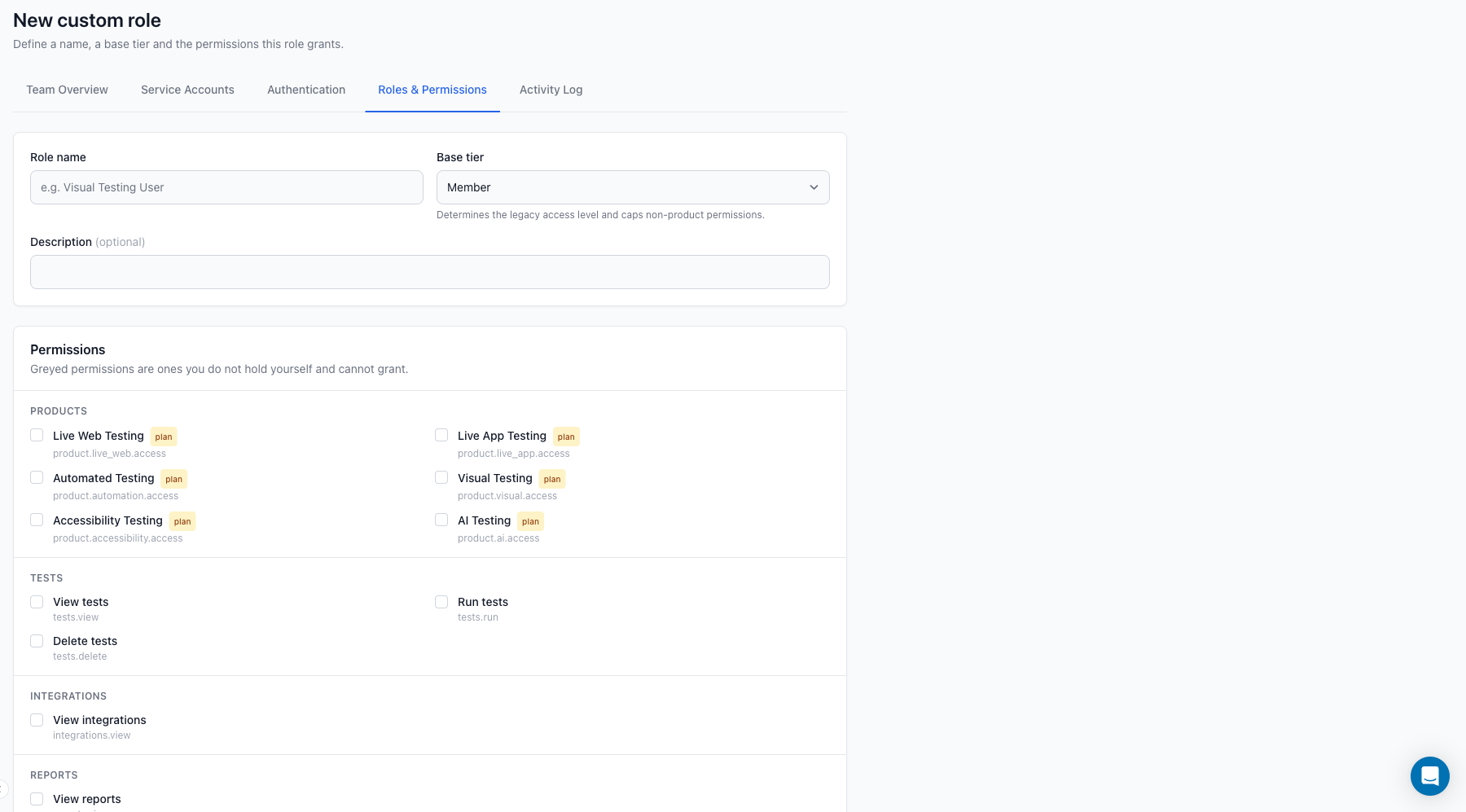
The permissions grid covers the full RBAC set:
- Products: Live Web Testing, Live App Testing, Automated Testing, Visual Testing, Accessibility Testing, and AI Testing. Each product also requires your plan to include that product, shown by a plan badge in the editor.
- Tests: View tests, Run tests, and Delete tests.
- Integrations: View integrations.
- Reports: View reports.
For reference, the built-in tiers bundle these permissions as follows:
| Permission | Admin | User | Viewer |
|---|---|---|---|
| Product access (all 6 products) | ✓ | ✓ | ✓ |
| View tests | ✓ | ✓ | ✓ |
| Run tests | ✓ | ✓ | · |
| Delete tests | ✓ | · | · |
| View integrations | ✓ | ✓ | ✓ |
| View reports | ✓ | ✓ | ✓ |
Admin includes all 11 RBAC permissions. User includes everything except Delete tests. Viewer is read-only, with everything except Run tests and Delete tests.
Base tier and ceiling
The base tier you select caps which non-product permissions the role can include. A role with a Viewer base tier cannot exceed Viewer, so it cannot grant Run tests or Delete tests no matter what you select in the grid. Choose a base tier that matches the highest level of access the role should reach.
Product permissions are not capped by the base tier. Instead, each product permission is gated by your plan: the member gets access to a product only when your plan includes that product and the role grants product.<product>.access. A member's effective product access is therefore the plan and the role combined.
Rules and limits
To keep custom roles safe, the editor enforces a few rules:
- You can only grant permissions you hold yourself. Permissions you do not have are greyed out in the grid.
- Custom roles cannot grant administrative (IAM) permissions. They are RBAC-only and never include things like managing integrations, billing, or team members.
- Owner-only permissions cannot be granted by a non-owner admin.
- Only the account owner can create Admin-tier roles.
The account owner and service accounts always have full RBAC capability and are not limited by these roles.
Assign a custom role
Once a custom role exists, assign it to a member using Modify access on the Team Members page. Your custom roles appear in the same list as the built-in tiers. For the full assignment workflow, see Member roles.
Edit or delete
You can edit or delete a custom role from the Roles & Permissions page.
- Editing a role updates every member who holds it immediately. Adding or removing a permission changes what those members can do right away.
- Deleting a role reverts its members to a built-in role, so no one is left without any access.
