Trello Integration
Enable the Trello integration to report bugs straight from your tests: create a new Trello card or comment on an existing one, with test metadata, a screenshot and a link back to the test included automatically.
A Report a bug button appears on every test detail page, and during a Live Testing session you can file an annotated screenshot as a Trello card.
Connect Trello
Go to Members > Integrations and click Trello, then click Connect with Trello.
You will be redirected to Trello to authorize TestingBot. Trello shows a one-click authorization screen: click Allow to grant TestingBot read and write access to your boards so we can list boards and lists and create cards on your behalf. We never see your password, and you can revoke access at any time from your Trello account settings.
One connection is shared by the whole team. The integration is owned by the account owner, so once it is connected every team member can report bugs to Trello without authorizing again.
Once connected, the page shows the Trello account TestingBot is connected as.

Report a bug
Open any test from the Test Detail page. In the header you will find a Report a bug button. Once one or more cards are linked to the test, the same button shows the number of linked cards instead.
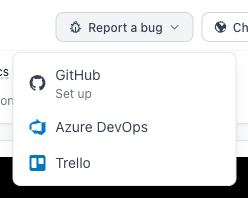
Click it and choose Trello from the menu.
This opens a dialog. Pick the Board and the List you want to create the card in, then fill in the card Name and Description. The description is pre-filled with the test metadata.
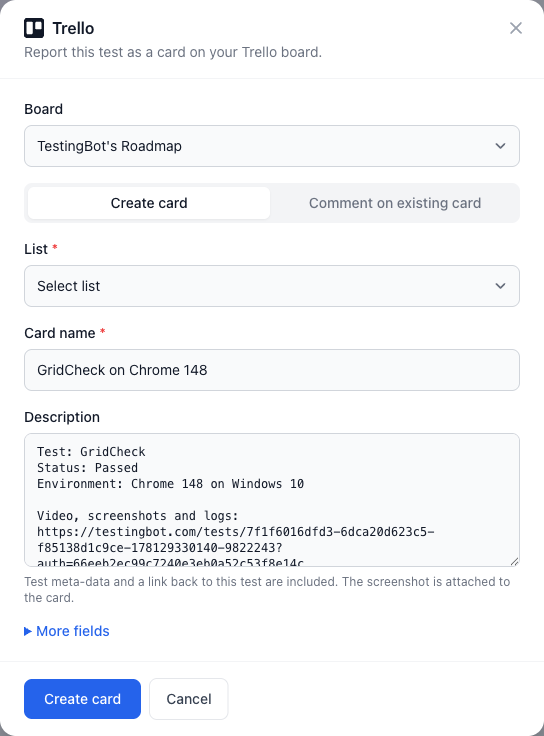
You can optionally apply one or more of the board's Labels and assign one or more Members from the board.
Click Create card. The card is created in your list and TestingBot shows a link to view it on Trello. The test metadata and the screenshot are attached automatically. The card is also linked to the test, so teammates opening the same test can see which cards were already reported.
Update an existing card
Already have a card for this bug? Switch to the Comment on existing card tab, select one of the board's open cards from the Card dropdown and write a comment. The comment is pre-filled with the test metadata and is added to the card on Trello, and the screenshot is attached to the card.
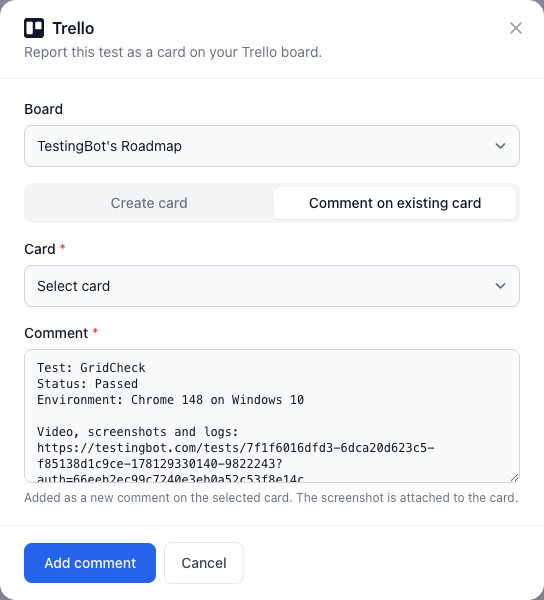
Commenting on a card links it to the test as well, so the test's card counter includes cards you commented on.
What gets included
The pre-filled description (or comment) contains a metadata block with:
- The test name, linked to a shareable public test page with the video, screenshots and logs
- The test result (passed or failed)
- The browser or device and operating system the test ran on
- The error message, when the test failed with one
The screenshot is added to the card as an attachment. You can edit or remove any of this before submitting. Whoever opens the card on Trello can follow the test link to watch the video and inspect the logs, without needing a TestingBot account.
Live Testing
During a manual Live Testing session, click Report Bug to take a screenshot and annotate it in the editor. Then click Report a bug and choose Trello.
The same dialog appears; the annotated screenshot is uploaded and attached to the card or comment, together with the session metadata.
Disconnect
To disconnect Trello, go to the Trello integration page and click Disconnect. Type Disconnect in the confirmation dialog to confirm.
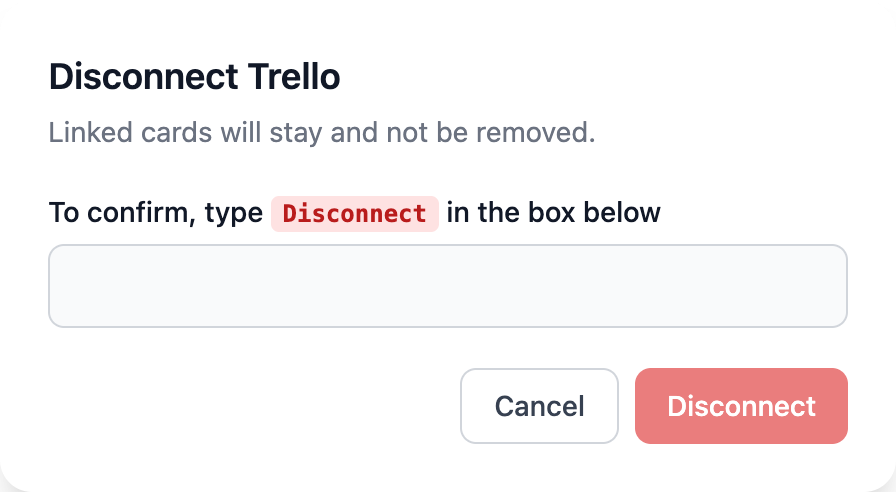
Cards that were already linked to your tests stay on your tests and are not removed. You can reconnect at any time; reconnecting with the same or another Trello account does not affect previously created cards.
