Linear Integration
Enable the Linear integration to report bugs straight from your tests: create a new Linear issue or comment on an existing one, with test metadata, the annotated screenshot and a link back to the test included automatically.
A Report a bug button appears on every test detail page, and during a Live Testing session you can file an annotated screenshot as a Linear issue.
Connect Linear
Go to Members > Integrations and click Linear, then click Connect with Linear.
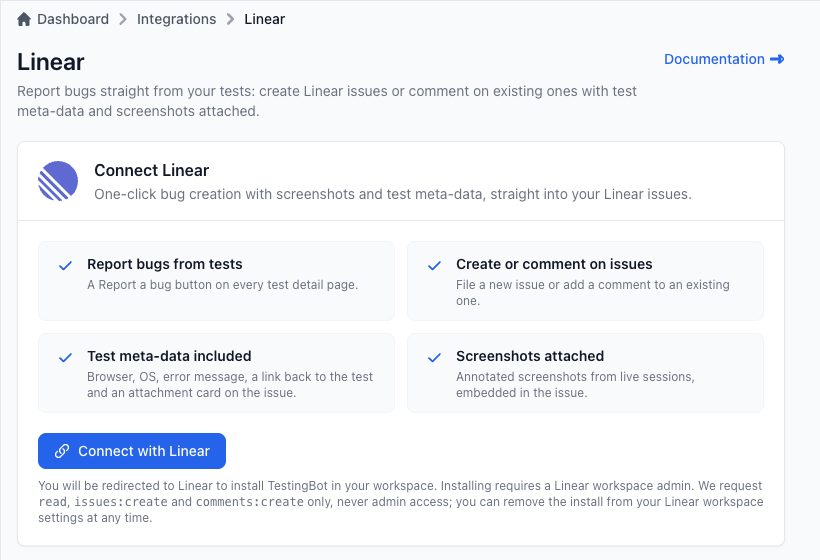
You will be redirected to Linear to authorize TestingBot. TestingBot is installed in your Linear workspace as an application, so the connection is shared by your whole TestingBot team and keeps working when the person who connected it leaves.
Installing requires a Linear workspace admin. On workspaces with third-party application approvals enabled, an admin approves the request first.
Once connected, the page shows the Linear workspace TestingBot is connected to and who connected it. Only TestingBot account owners and admins can connect or disconnect the integration; every team member can report bugs with it.
Permissions we request
TestingBot asks Linear for three permissions and nothing more:
-
read: list your teams, projects, labels, members and open issues so the Report a bug dialog can offer them. -
issues:create: create issues and add the screenshot and the link back to the test. -
comments:create: add a comment when you report a bug on an existing issue.
We never ask for admin access. You can revoke the installation at any time from your Linear workspace settings.
Report a bug
Open any test from the Test Detail page. In the header you will find a Report a bug button. Once one or more issues are linked to the test, the same button shows the number of linked issues instead.
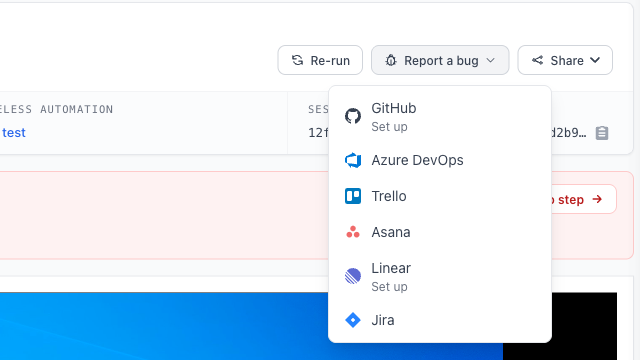
Click it and choose Linear from the menu.
This opens a dialog. Pick the Team you want to file the issue in, then fill in the Title and Description. The description is pre-filled with the test metadata.
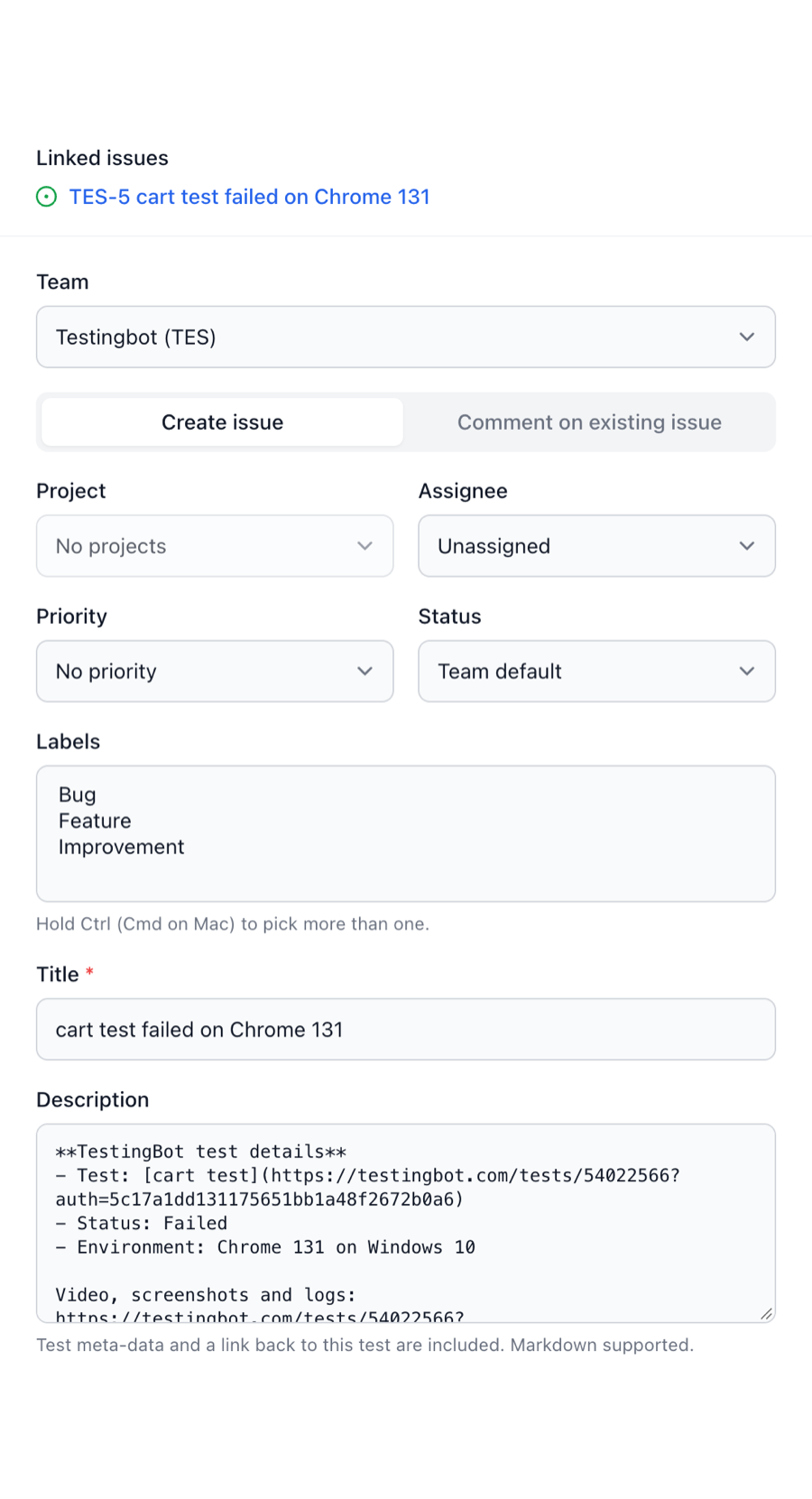
You can optionally choose a Project, an Assignee, one or more Labels, a Priority and a Status. Leave the status empty to use the team's default.
Click Create issue. The issue is created in your team and TestingBot shows a link to view it on Linear. The issue is also linked to the test, so teammates opening the same test can see which issues were already reported.
Comment on an existing issue
Already have an issue for this bug? Switch to the Comment on existing issue tab and pick one of the team's recently updated open issues, or paste the issue identifier (for example ENG-123) or its Linear URL. Then write a comment. The comment is pre-filled with the test metadata and is added to the issue on Linear.
Commenting on an issue links it to the test as well, so the test's issue counter includes issues you commented on.
What gets included
The pre-filled description (or comment) contains a metadata block with:
- The test name, linked to a shareable test page with the video, screenshots and logs
- The test result (passed or failed)
- The browser or device and operating system the test ran on
- The error message, when the test failed with one
When you report from a Live Testing session, the annotated screenshot is uploaded to Linear and shown inline at the top of the issue or comment.
TestingBot also attaches the test to the issue as a Linear attachment card: it shows the test name, result and environment on the issue and links back to the test page.
You can edit or remove any of this before submitting. Whoever opens the issue on Linear can follow the test link to watch the video and inspect the logs, without needing a TestingBot account.
Live Testing
During a manual Live Testing session, click Report Bug to take a screenshot and annotate it in the editor. Then click Report a bug and choose Linear.
The same dialog appears; the annotated screenshot is uploaded to Linear and shown inline at the top of the issue or comment, together with the session metadata.
Disconnect
To disconnect Linear, go to the Linear integration page and click Disconnect. Type Disconnect in the confirmation dialog to confirm. TestingBot revokes its access token on Linear when you disconnect.
Issues that were already linked to your tests stay linked and are not removed. You can reconnect at any time; reconnecting to the same or another Linear workspace does not affect previously created issues.
If you remove TestingBot from your Linear workspace instead (Settings > Administration > Applications), Linear tells us and the connection is cleared on our side within a minute. Linked issues stay on your tests either way.